Skip to content
RECHTIGO
All features for lawyers
Appointments and case requests

Appointments, availability and case requests

Clients book appointments from your consultation hours or send a case request. Both come with the case details and a summary. Booked appointments are fixed straight away; case requests you accept, decline, propose an appointment for or refer to colleagues.

rechtigo.de/anwalt/termine
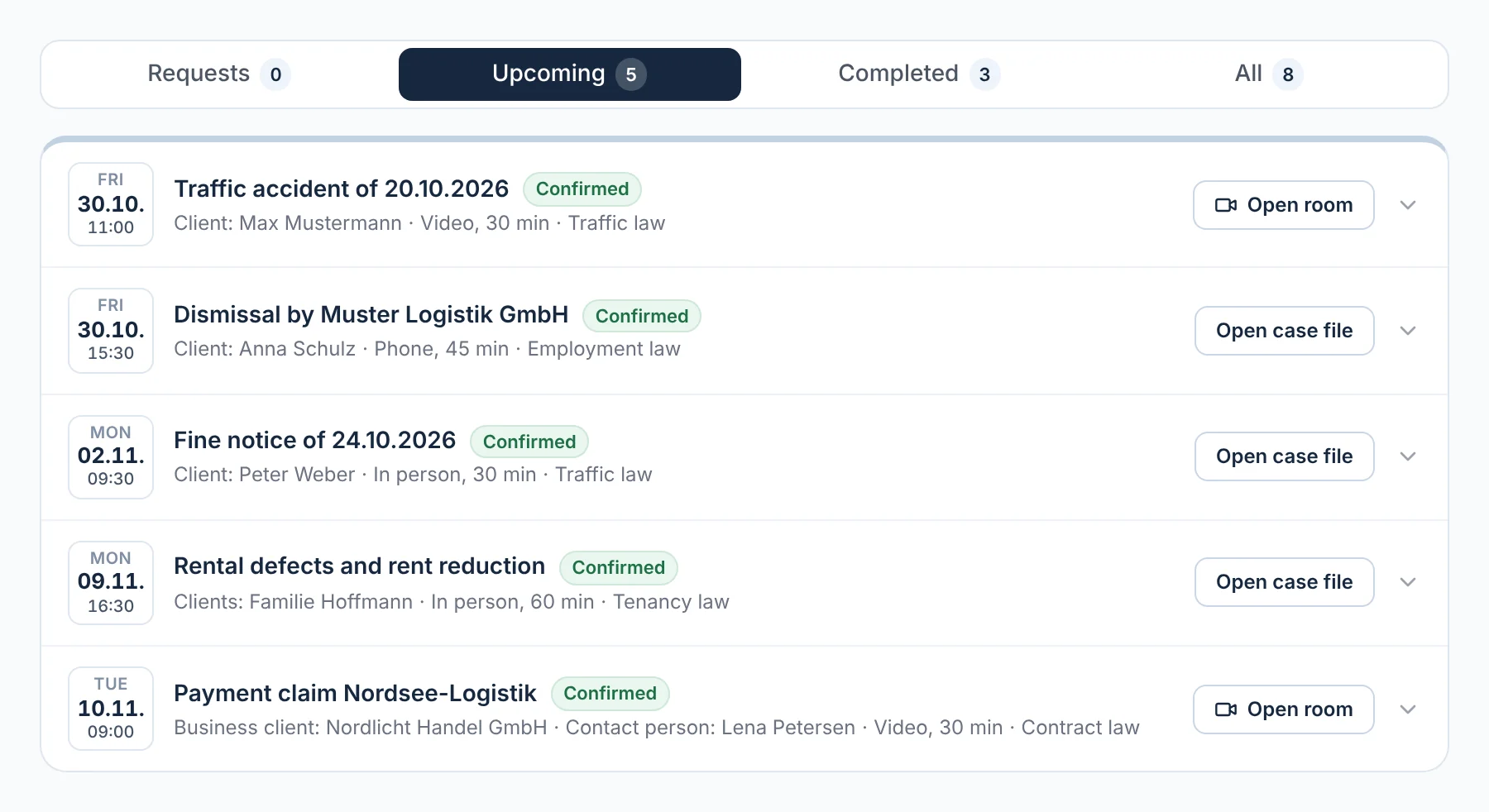
Screenshot from Rechtigo, view for lawyers: Appointments, availability and case requests
In the picture: View for lawyers: your appointments under ‘Upcoming’ – each with date, time, case, client with role and format, all ‘Confirmed’; for video appointments ‘Open room’.

Consultation hours

Your hours for each weekday become free 30-minute appointments – no phone call needed.

Request with case

The case description, the client’s details and documents are ready before you accept.

Video or in person

By video you advise clients across Germany; in person at your premises.

Forwarding with consent

If you don’t reply in time, the request is only passed on with the client’s consent.

Consultation hours

Clients book from your consultation hours

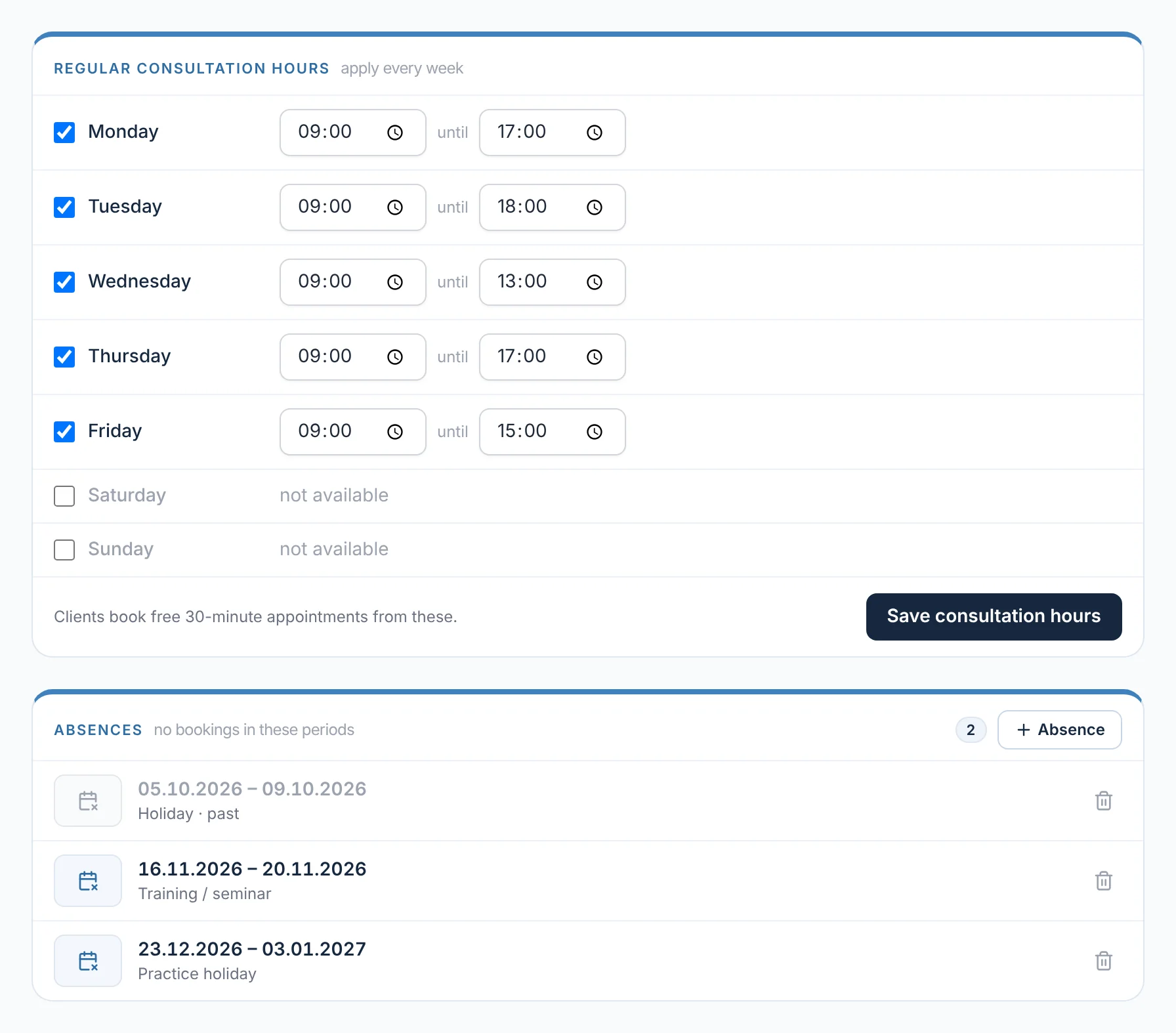
Under ‘Availability’ you set a time window for each weekday. From it, clients see free 30-minute appointments – by video or in person, depending on what you offer. You enter holidays or training as an absence; nothing is booked during those periods.

  • In your profile you choose: let clients book directly, see the case description first, or both
  • In holiday mode your profile stays visible – with the date from which you can be booked again
From everyday practice

Lawyer Max Meier enters 16 to 20 November 2026 as training. Nobody can book that week, and in the deadline register every deadline falling on those days shows a note about the absence.
rechtigo.de/anwalt/verfuegbarkeit
Screenshot from Rechtigo, view for lawyers: Clients book from your consultation hours
In the picture: View for lawyers: the ‘Availability’ page – your regular consultation hours per weekday at the top, below them the absences during which nothing is booked.
Booking button

A button on your website leads to your appointments

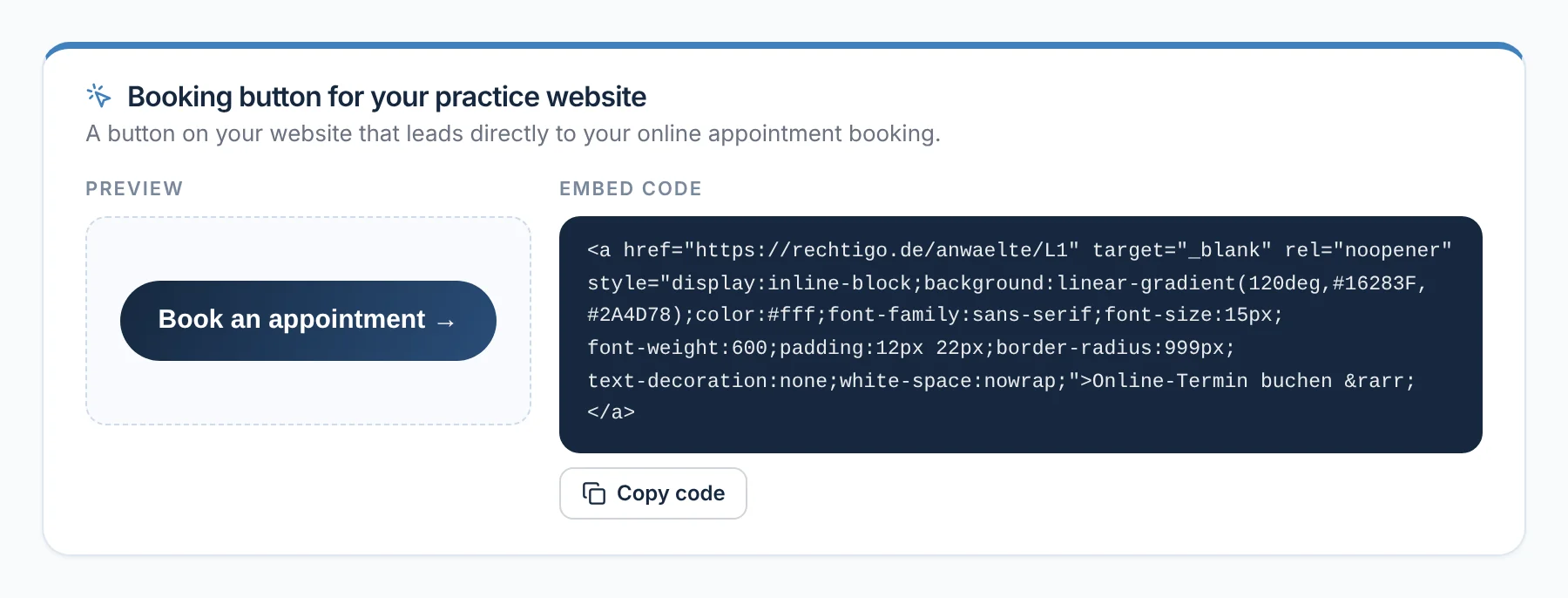
In your profile, under ‘For your website’, you’ll find a ready-made booking button. It takes visitors to your website straight to your online appointment booking on Rechtigo. The preview shows what it looks like; with ‘Copy code’ you add it to your website.

From everyday practice

Lawyer Max Meier gives the code to the agency that maintains his website. Since then it says ‘Book an online appointment →’; anyone who clicks it sees his free appointments.

rechtigo.de/anwalt/profil
Screenshot from Rechtigo, view for lawyers: A button on your website leads to your appointments
In the picture: View for lawyers: the ‘Booking button’ card in your profile – the button preview on the left, the code with ‘Copy code’ on the right.
Booked appointments

Every appointment with all the details of the case

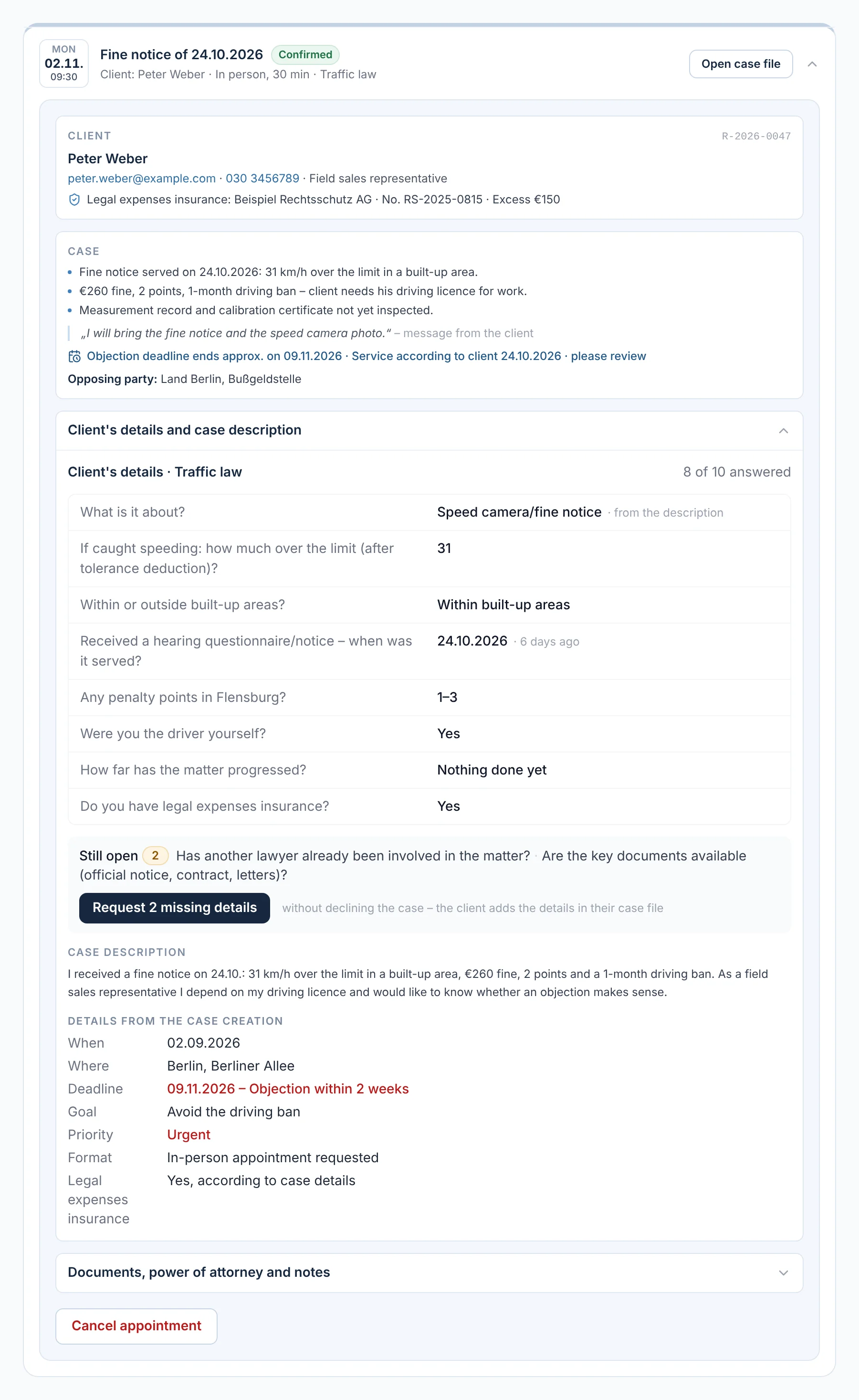
Only slots that are free in your consultation hours can be booked. That confirms the appointment – you don’t need to do anything else; you and your client receive an e-mail. Expanded, it shows the client and legal expenses insurance, key points of the case, the opposing party for the conflict check, and the details and case description. For official notices and notices of termination, Rechtigo states the approximate end of the deadline – for you to check yourself.

  • ‘Request missing details’ without declining the case
From everyday practice

Client Peter Weber books an in-person appointment on Monday 2 November 2026 at 09:30. In advance, lawyer Max Meier sees the fine, driving ban and ‘Objection deadline ends approx. 9 November 2026’ – and knows what the client is bringing.

rechtigo.de/anwalt/termine
Screenshot from Rechtigo, view for lawyers: Every appointment with all the details of the case
In the picture: View for lawyers: client Peter Weber’s appointment on 2 November 2026, expanded – contact and legal expenses insurance, key points of the case with a deadline note, and his details below.
Mandate autopilot

After booking, the power of attorney goes out automatically

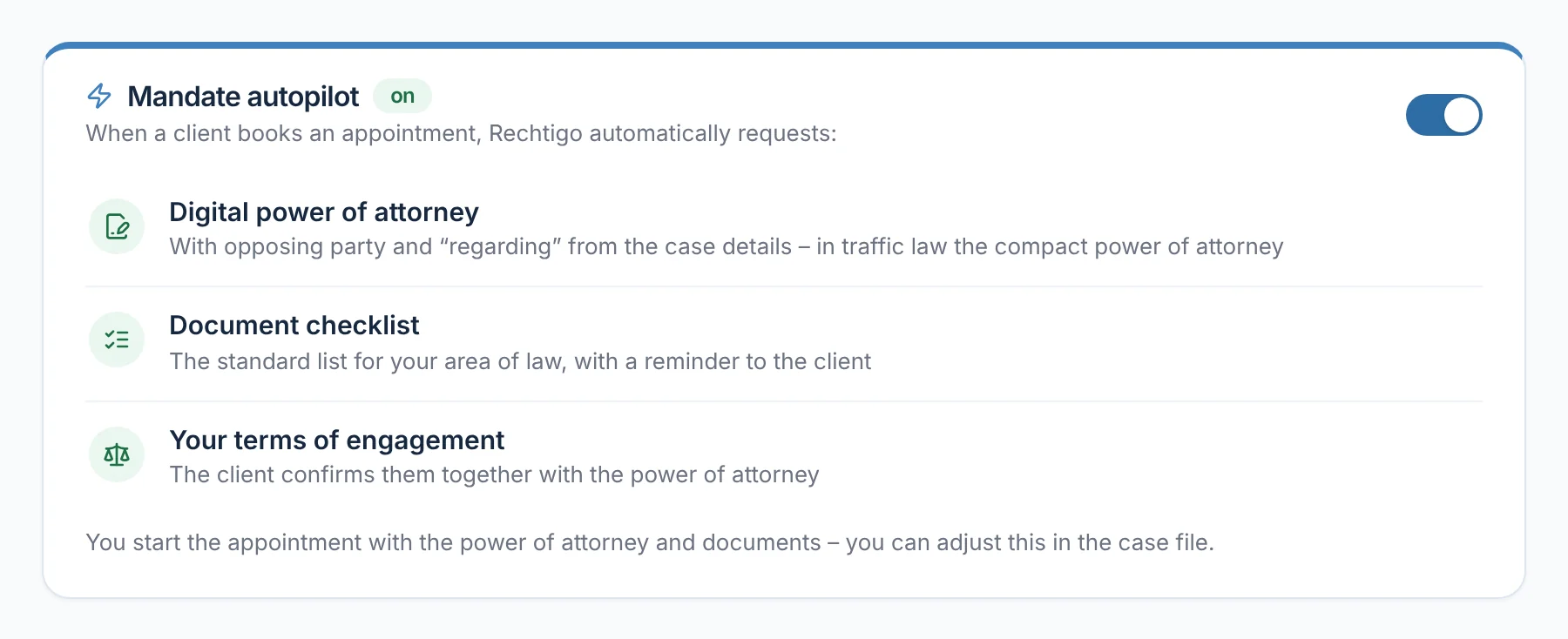
With the mandate autopilot, Rechtigo requests the digital power of attorney after every appointment booking, sends your client the document checklist for your area of law and presents your terms of engagement for confirmation. The autopilot takes the opposing party and the ‘re:’ line from the case details; in traffic law it uses the compact power of attorney. You can fine-tune everything in the case file.

  • So the appointment can start with a signed power of attorney
From everyday practice

A client books an appointment about her notice of dismissal. Even before lawyer Max Meier opens the booking, she has received the power of attorney, the terms of engagement and the checklist for employment law.

More on mandate and power of attorney
rechtigo.de/anwalt/profil
Screenshot from Rechtigo, view for lawyers: After booking, the power of attorney goes out automatically
In the picture: View for lawyers: the mandate autopilot in your profile, switched on – after every booking, the power of attorney, checklist and terms of engagement go out.
Calendar subscription

Your Rechtigo appointments in your usual calendar

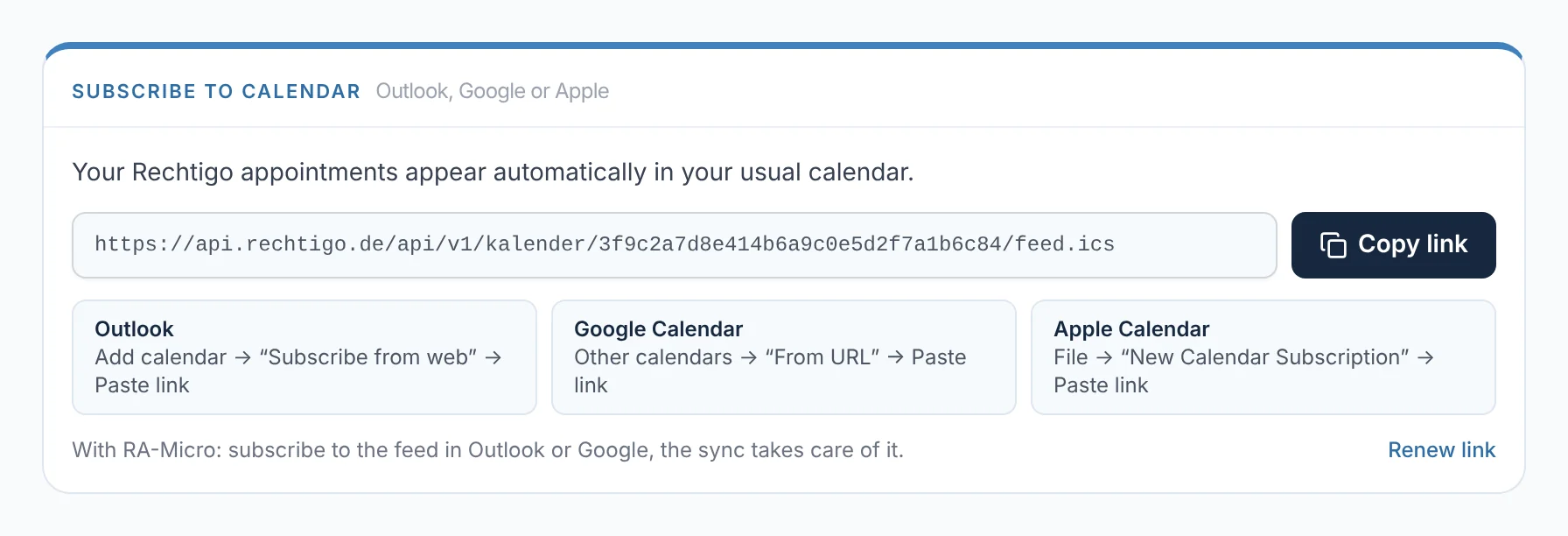
Under ‘Availability’ you’ll find your personal subscription link. You copy it with ‘Copy link’ and add it to your calendar as a subscription; the instructions for the common calendars are right next to it. After that, your Rechtigo appointments appear there automatically. If your practice management software syncs with this calendar, it picks up the appointments from there.

  • ‘Renew link’ makes the previous link invalid
From everyday practice

Lawyer Max Meier clicks ‘Copy link’ and follows the instructions for his calendar: add calendar, ‘Subscribe from the internet’, paste link. After that, his Rechtigo appointments are there without him typing them in.

rechtigo.de/anwalt/verfuegbarkeit
Screenshot from Rechtigo, view for lawyers: Your Rechtigo appointments in your usual calendar
In the picture: View for lawyers: ‘Subscribe to calendar’ – your personal subscription link with ‘Copy link’, below it the instructions for the common calendars.
Case requests

Case requests with summary and follow-up question

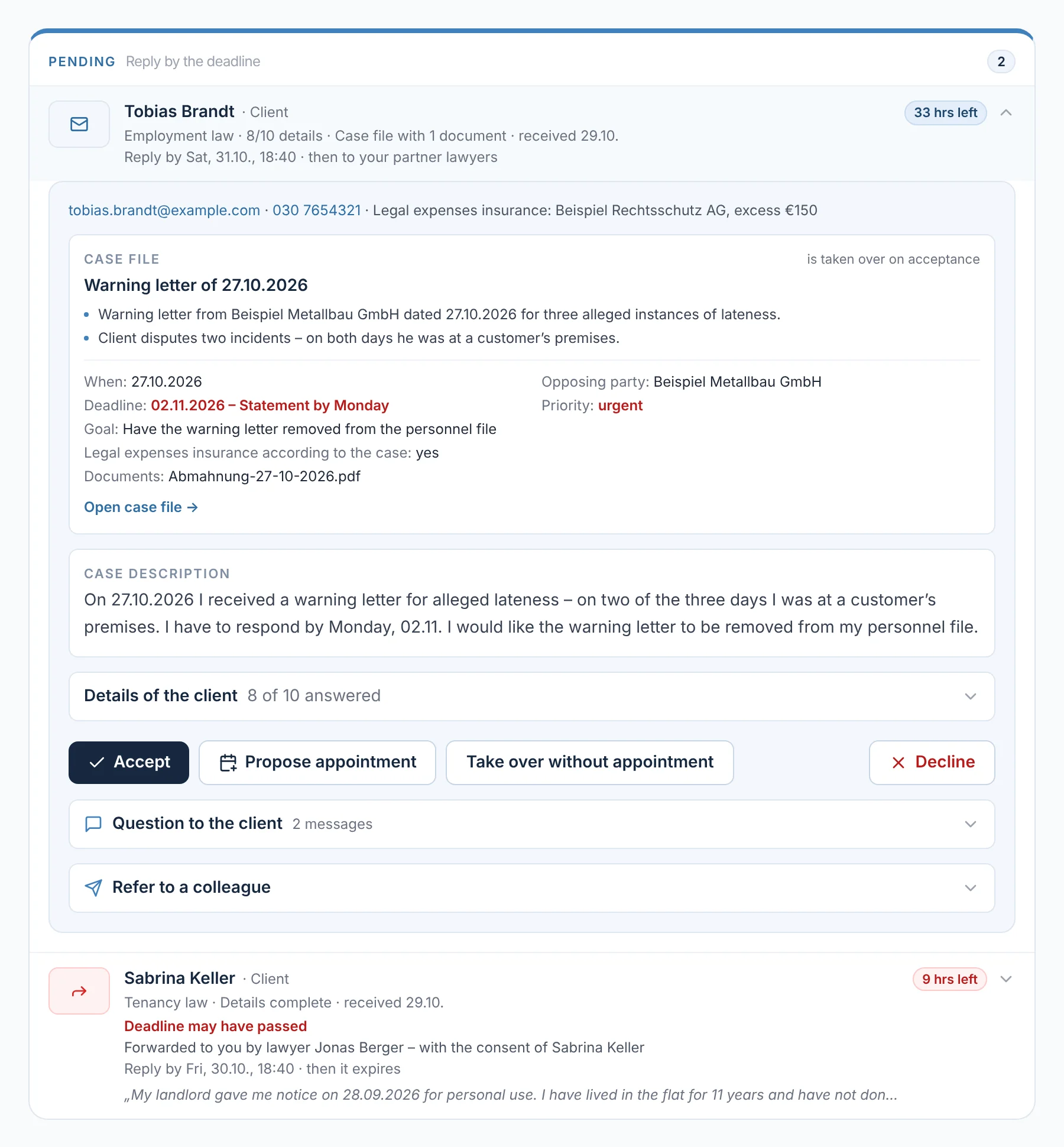
Under ‘Requests’ you’ll find your clients’ case descriptions, each with a response deadline and the detected case type. Beforehand, your client has answered the key questions for their area of law; critical answers are shown in red, such as ‘Deadline may have passed’. The AI summarises the key points; the assessment stays with you.

  • ‘Question to the client’ before accepting
  • ‘Regular client’: if they have set you as their lawyer, the request shows it
From everyday practice

A client describes a formal warning dated 27 October 2026 – response due by Monday 2 November. The warning is in the case file as a PDF. Lawyer Max Meier must reply by Saturday 31 October, 18:40; after that, the request goes to his partner lawyers.

rechtigo.de/anwalt/anfragen
Screenshot from Rechtigo, view for lawyers: Case requests with summary and follow-up question
In the picture: View for lawyers: a case request about a formal warning, expanded – key points, deadline and opposing party, the description, and below it the buttons from ‘Accept’ to ‘Decline’.
Response deadline

The client chooses how long they wait

When sending, the client chooses how long they will wait for your reply – 24 hours, 48 hours or 3 days – and whether the request may be forwarded afterwards. You see the time remaining. A request is only forwarded with their consent and no more than once – depending on their choice, to one of your partner lawyers or to the next suitable lawyer.

  • You set your partner lawyers under ‘Practice → Partner lawyers’
From everyday practice

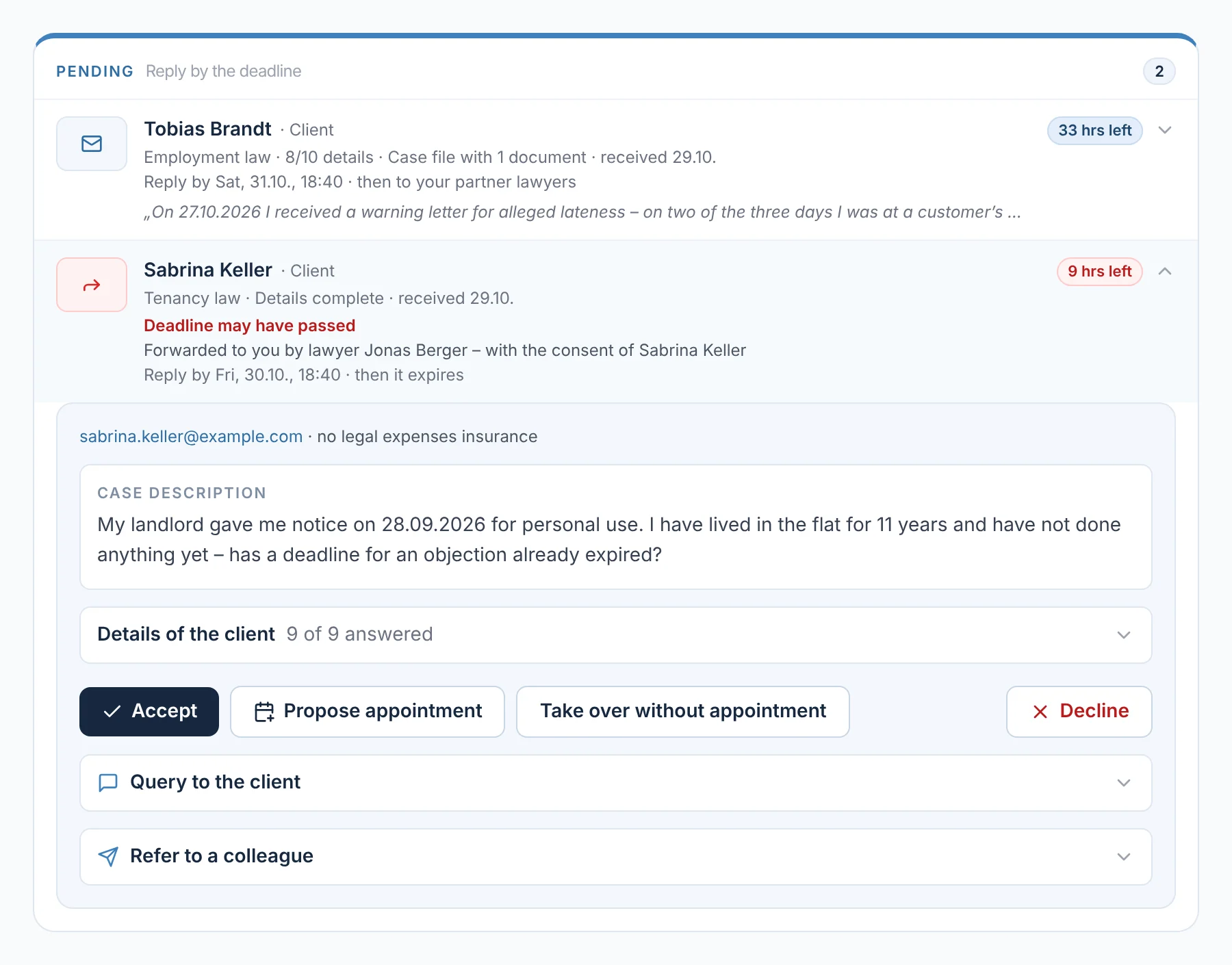
A client asks about her landlord’s notice of termination for personal use and agrees to forwarding. Partner lawyer Jonas Berger can’t reply in time, so the request is now with lawyer Max Meier – showing ‘9 hrs left’; after that it expires.

rechtigo.de/anwalt/anfragen
Screenshot from Rechtigo, view for lawyers: The client chooses how long they wait
In the picture: View for lawyers: a case request forwarded to you by partner lawyer Jonas Berger – with the client’s consent, the time remaining on the right.
Available now

A free hour? Show it

If an appointment is cancelled, switch yourself to ‘Available now’ in your profile for two or four hours. Clients see this in search and on your profile, and you are suggested first during this time. The display ends on its own or with ‘Switch off’.

From everyday practice

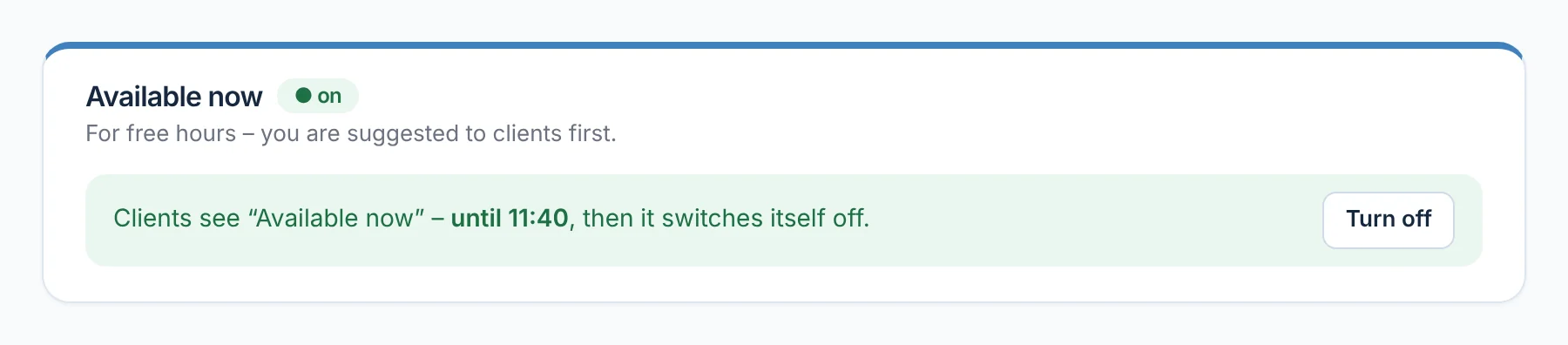
An appointment is cancelled. Lawyer Max Meier switches on ‘Available now’ for two hours: until 11:40, clients see this and he is suggested to them first; then it switches itself off.

rechtigo.de/anwalt/profil
Screenshot from Rechtigo, view for lawyers: A free hour? Show it
In the picture: View for lawyers: ‘Available now’ in your profile – switched on until 11:40, with ‘Switch off’ next to it.
More

Also included

A video room for each appointment

For every confirmed video appointment, Rechtigo sets up a room – no invitation, no extra software.

Propose an appointment

Assign an appointment from the request – the client confirms with one click.

Refer to colleagues

If the case isn’t right for you, refer it – only once the client agrees.

Mandate without an appointment

‘Take on without appointment’: the power of attorney and checklist go to the client straight away.

Client view

How your client books

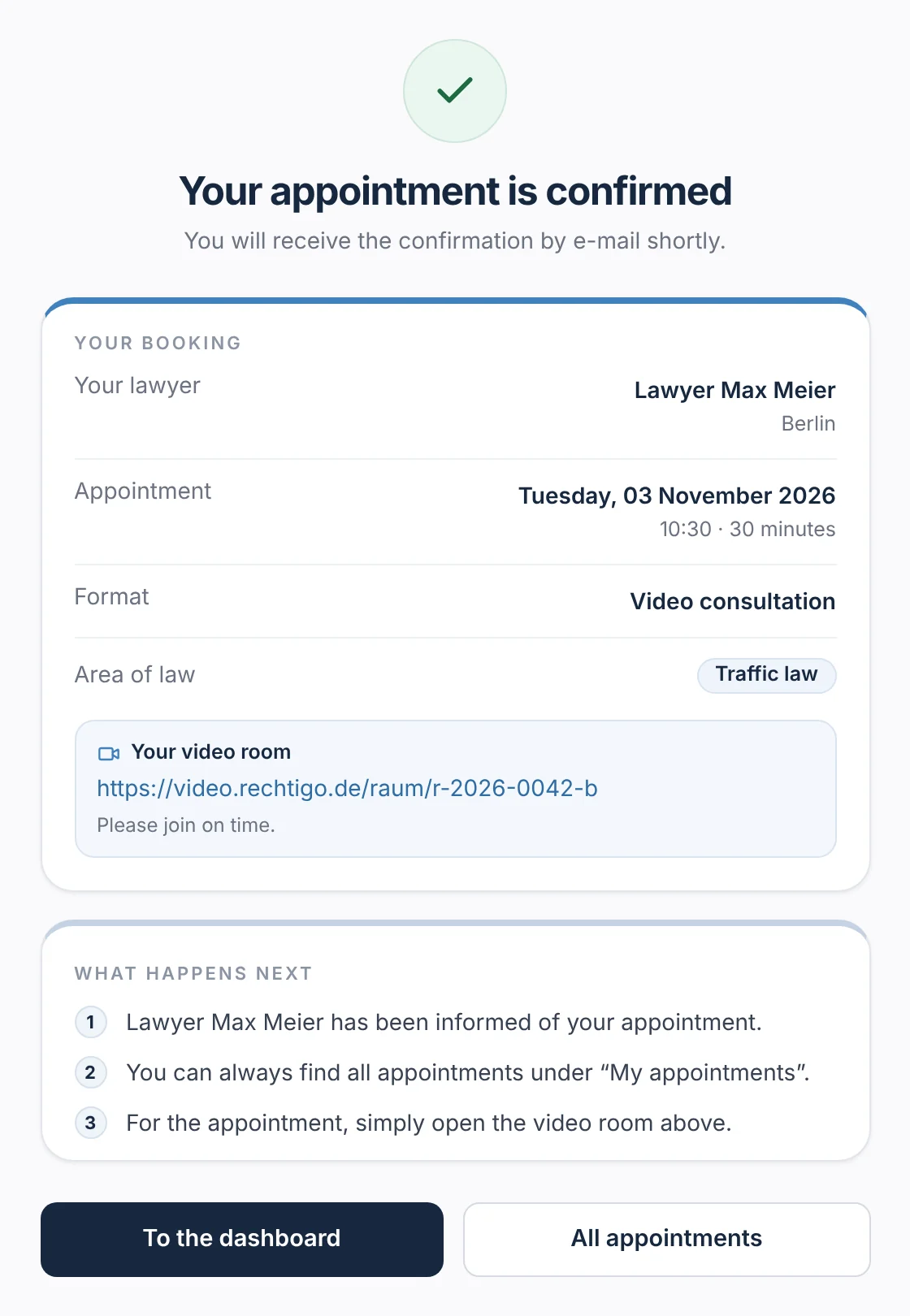
On your profile, your client sees free appointments from your consultation hours and chooses video or in person – only what you offer. After booking, they see ‘Your appointment is confirmed’ with your name, date, format and the link to their video room; they also get an e-mail and a reminder 24 hours beforehand.

  • They can reschedule themselves – up to your cut-off of 12 to 72 hours beforehand, no more than twice and only to free slots
  • With ‘Note me for an earlier appointment’, Rechtigo lets them know once by e-mail if another client of yours cancels or rebooks
  • They can withdraw their consent to forwarding as long as the request hasn’t been forwarded
rechtigo.de/buchung/bestaetigung
Screenshot from Rechtigo, view for clients: Booking confirmation ‘Your appointment is confirmed’ for the client
In the picture: View for clients: the confirmation after booking – ‘Your appointment is confirmed’ with lawyer Max Meier, date, format and the link to the video room.
Questions

Frequently asked questions

Your question isn't here? Write to us at support@rechtigo.de.

Can I set how short-notice bookings can be?

Yes. In your profile you set a minimum notice period and the buffer between two appointments; there you also set until when clients may reschedule an appointment themselves.

And if my client hasn’t agreed to forwarding?

Then the request expires after the chosen time. Your client is informed and decides for themselves what happens next.

Does Rechtigo see the appointments in my own calendar?

No. The calendar subscription brings your Rechtigo appointments into your calendar, not the other way round. You block whole days as an absence; with ‘Case description first’ instead of direct booking, you propose appointments yourself.

Do I have to give a reason if I decline a case request?

No. Your client is only told by e-mail that you can’t take on their case at the moment – with a link to the lawyer search.

Can I stop taking on new clients for a while?

Yes. Switch off ‘New clients’ in your profile: Rechtigo then accepts no bookings, case requests or forwardings for you. Ongoing case files, messages and appointments continue as usual.

Founding programme

Join the waitlist now

Rechtigo costs from €99 a month, €0 per mandate; the first 50 lawyers per city start in the Founding programme with three months free.

Rechtigo launches on 15 January 2027 – we will let you know as soon as registration opens.