Skip to content
RECHTIGO
All features for lawyers
Case and case file

The case file as your workspace

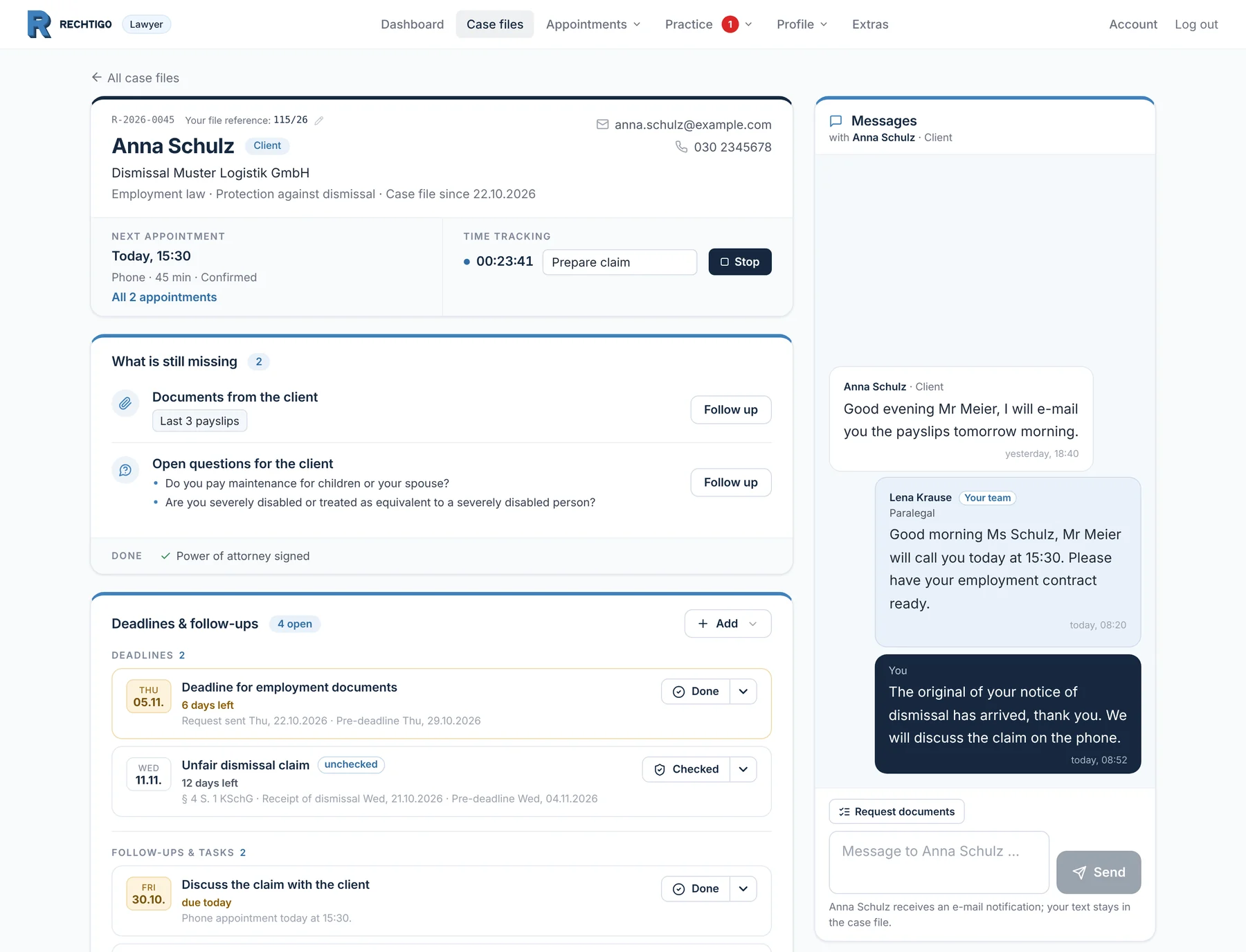
The case file shows what is still missing, which deadline is running, what has come in and what your client has written. You work through the items – Rechtigo files the post, sends reminders and keeps your client up to date.

rechtigo.de/anwalt/akte
Screenshot from Rechtigo, lawyer view: The case file as your workspace
In the picture: Lawyer view: the case file of client Anna Schulz – on the left, what is still missing, with the deadlines below; on the right, the thread with her, staff member Lena Krause and you.

What is still missing

Only what is open, each item with one button – completed items ticked off below.

Deadlines in the case file

Deadlines, follow-ups and court hearings for this case file, the urgent ones at the top.

Post to the case file

One address for all e-mails; every incoming item is checked in four steps.

Case tracker

In their case file, your client sees which stage has been reached.

What is still missing

What is still missing – one list, one button per item

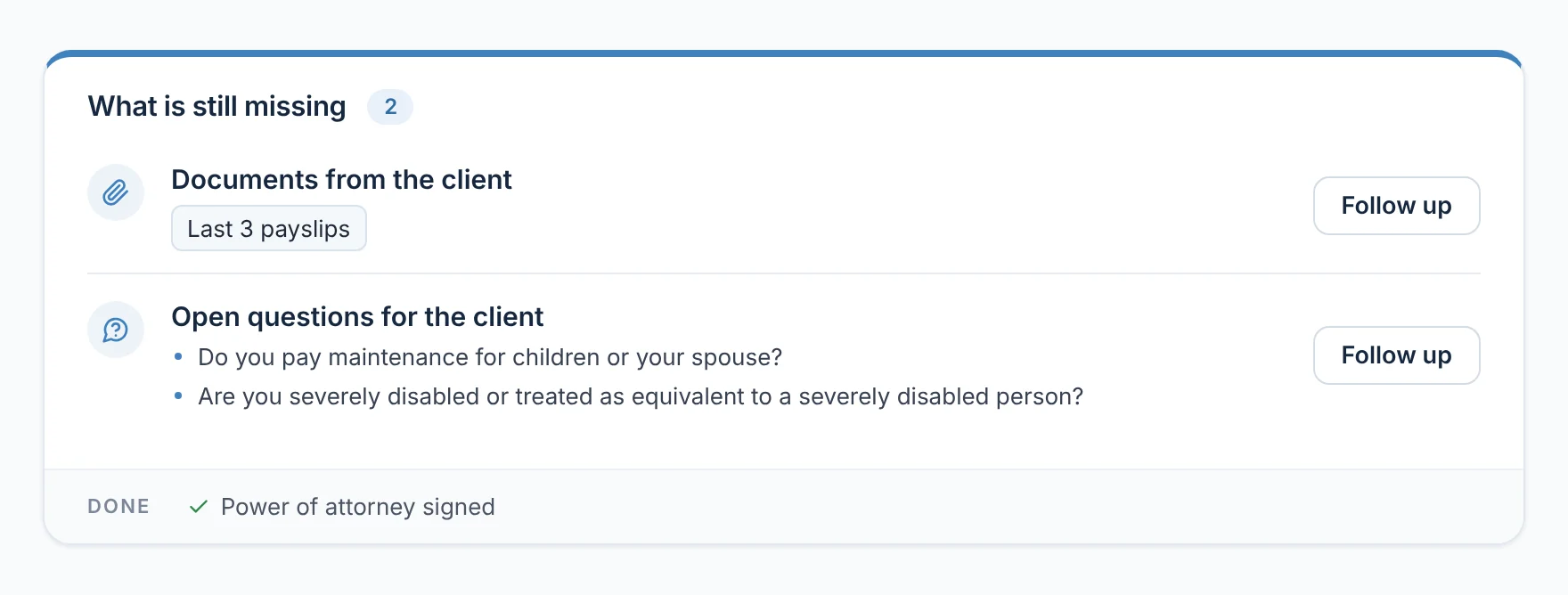
At the top of the case file you only see what the case still needs: the power of attorney, the client's documents as one entry with a list, open questions for the client or the confirmation of cover. Each item has at most one button, such as ‘Request power of attorney’ or ‘Follow up’. If nothing is open, the card shows ‘all there’.

  • Deadlines and incoming items have their own sections
From everyday practice

The case file of client Anna Schulz is still missing her last three payslips, plus two open questions on the social selection – such as whether she pays maintenance. Below, marked as done: power of attorney signed.
Request power of attorney and documents
rechtigo.de/anwalt/akte
Screenshot from Rechtigo, lawyer view: What is still missing – one list, one button per item
In the picture: Lawyer view: ‘What is still missing’ in the case file of client Anna Schulz – two open items, each with one button, and the completed items below.
Deadlines & follow-ups

The deadlines in this case file – the urgent ones first

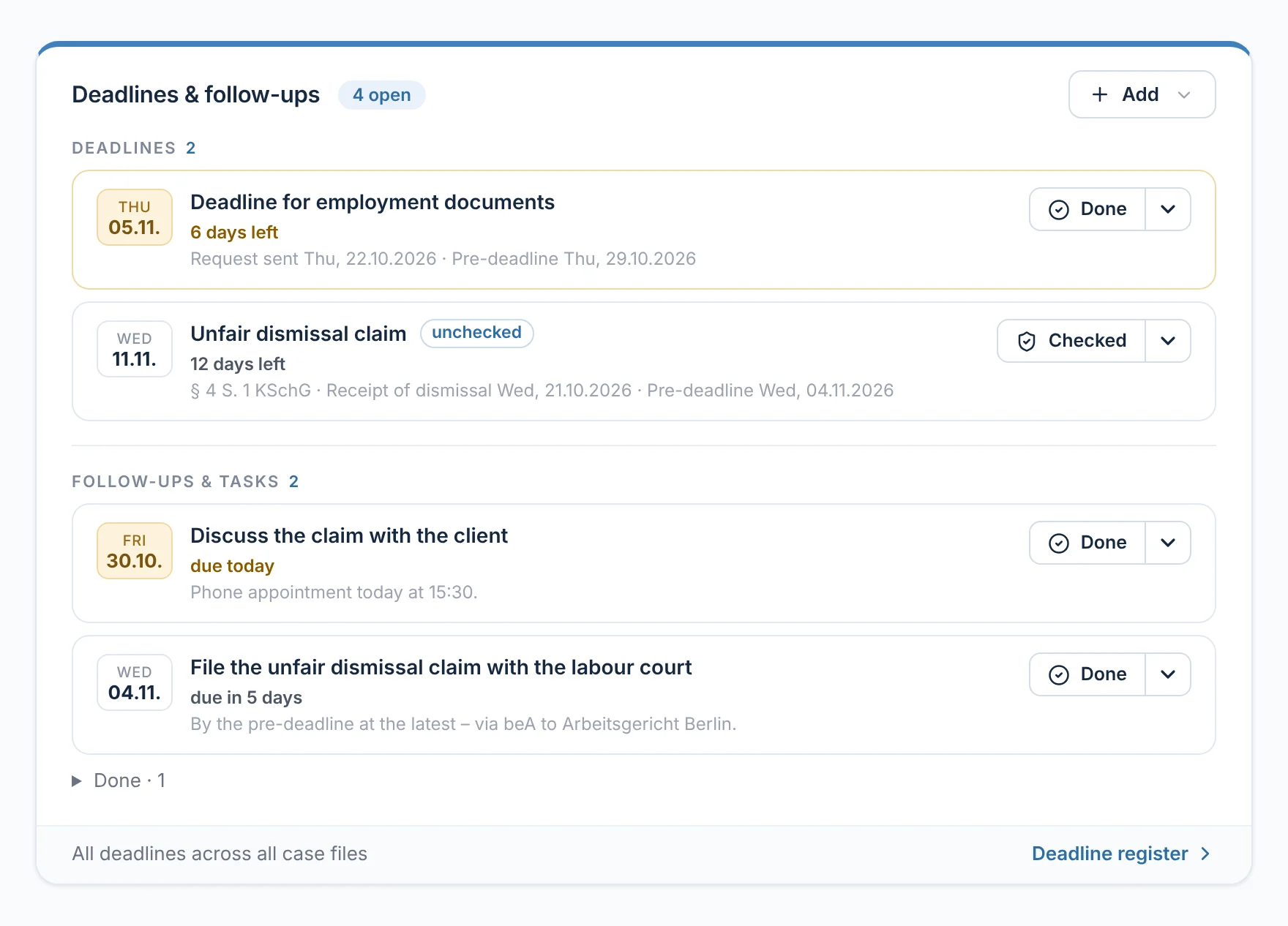
The ‘Deadlines & follow-ups’ section lists the deadlines, follow-ups and court hearings of this one case file, with anything overdue in red at the top. Each row has one button, such as ‘Checked’ or ‘Done’. Based on the client's details, the case file suggests what has not yet been noted; ‘Add’ lets you enter something new.

  • At the bottom, the way to the deadline register for all case files
From everyday practice

The case file of client Anna Schulz shows two deadlines: the deadline for replying about the employment papers and the deadline for filing the claim, still ‘unchecked’. Due today is the follow-up ‘Discuss the claim with the client’, for the phone appointment at 15:30.

Note, check and complete deadlines
rechtigo.de/anwalt/akte
Screenshot from Rechtigo, lawyer view: The deadlines in this case file – the urgent ones first
In the picture: Lawyer view: the deadlines in the case file of client Anna Schulz – at the top the reply deadline for the employment papers, below it the deadline for filing the claim, still ‘unchecked’; at the bottom the follow-ups, one due today.
Conflict check

Spot conflicts of interest early

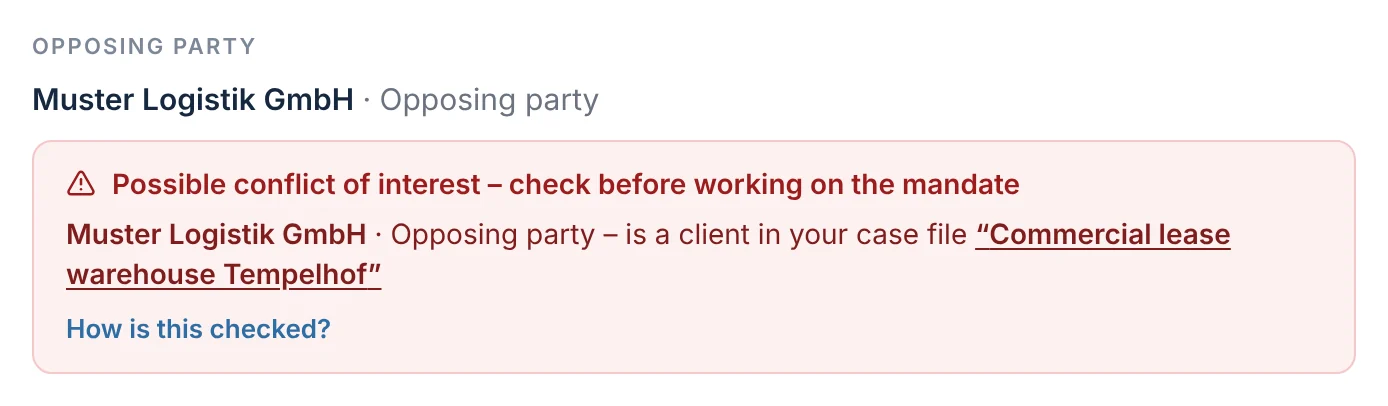
Rechtigo checks the opposing party in every case file against the clients in your other case files and requests – and the other way round. In a lawyer team, your colleagues' case files are included. A match appears as a red notice: ‘Possible conflict of interest – check before working on the mandate’. The decision is yours.

  • No match: ‘No conflict of interest found’ with the number of case files checked
  • Matches from the team only name the colleague, never a case file title
From everyday practice

The employer Muster Logistik GmbH is also a client in a case file of lawyer Max Meier: ‘Commercial lease, Tempelhof warehouse’. The red notice appears in the case file of client Anna Schulz before work on the mandate begins.

rechtigo.de/anwalt/akte
Screenshot from Rechtigo, lawyer view: Spot conflicts of interest early
In the picture: Lawyer view: the opposing party in the case file of client Anna Schulz – the employer Muster Logistik GmbH is also a client in another case file, hence the red notice.
Post to the case file

One address – and every item in its case file

How post gets into the case file, how you check an incoming item and what happens to e-mails that do not match any case file.

Your Rechtigo address

One address for all post

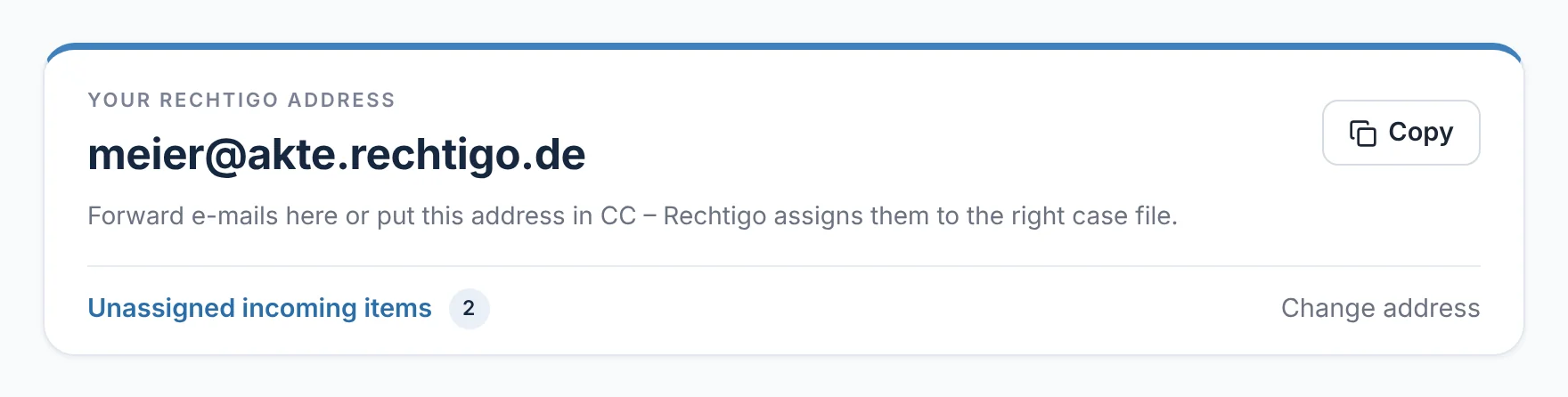
You have exactly one Rechtigo address, for example meier@akte.rechtigo.de. Replies to letters you send from Rechtigo go into the right case file automatically, as do the expert reports from your partner experts. Rechtigo files every e-mail sent to your Rechtigo address itself – using your file reference in the subject line, or the sender if they are your client. Other post you forward, or you copy the address in.

  • ‘Change address’: your previous address stays valid
From everyday practice

Lawyer Max Meier writes to the employer of client Anna Schulz from Rechtigo on 22 October 2026. Their reply of 27 October 2026 lands in the case file automatically.

rechtigo.de/anwalt/konto/verbindungen
Screenshot from Rechtigo, lawyer view: One address for all post
In the picture: Lawyer view: ‘Your Rechtigo address’ under ‘Account → Connections’ – the one address with ‘Copy’, below it the unassigned incoming items and ‘Change address’.
Incoming

Three tabs, one list, fixed columns

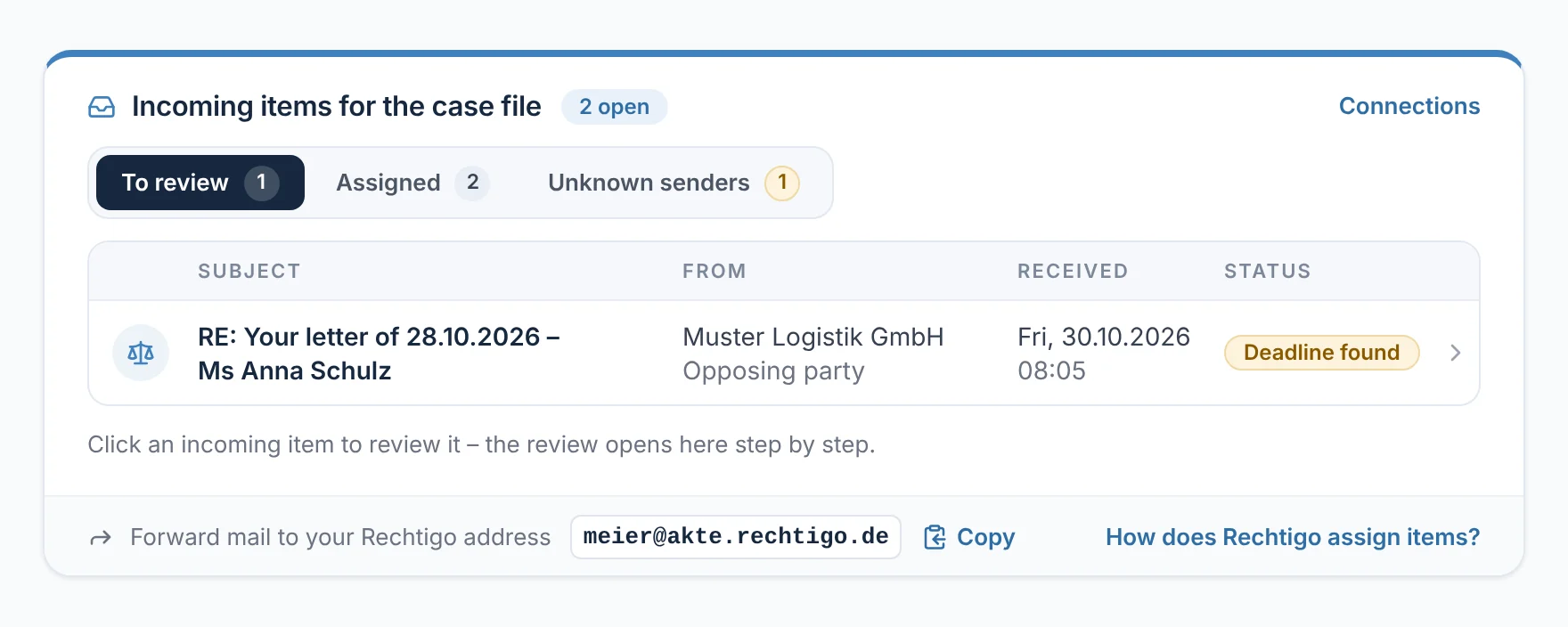
The ‘Incoming for this case file’ card only ever shows one list: ‘To check’, ‘Assigned’ or ‘Unknown senders’, each tab with its count. Every row has the same columns – an icon for the type, subject, sender with role, date received and status – and nothing else.

  • What needs checking comes first
From everyday practice

In the case file of client Anna Schulz, an item received on 30 October 2026 marked ‘Deadline detected’ sits under ‘To check’. Under ‘Assigned’ are the employer's first reply and the client's e-mail; under ‘Unknown senders’, one more e-mail.

rechtigo.de/anwalt/akte
Screenshot from Rechtigo, lawyer view: Three tabs, one list, fixed columns
In the picture: Lawyer view: incoming items for the case file of client Anna Schulz – under ‘To check’ the reply from her employer marked ‘Deadline detected’, next to it two more tabs, at the bottom your Rechtigo address.
Check incoming item

Four steps, then the item belongs to the case file

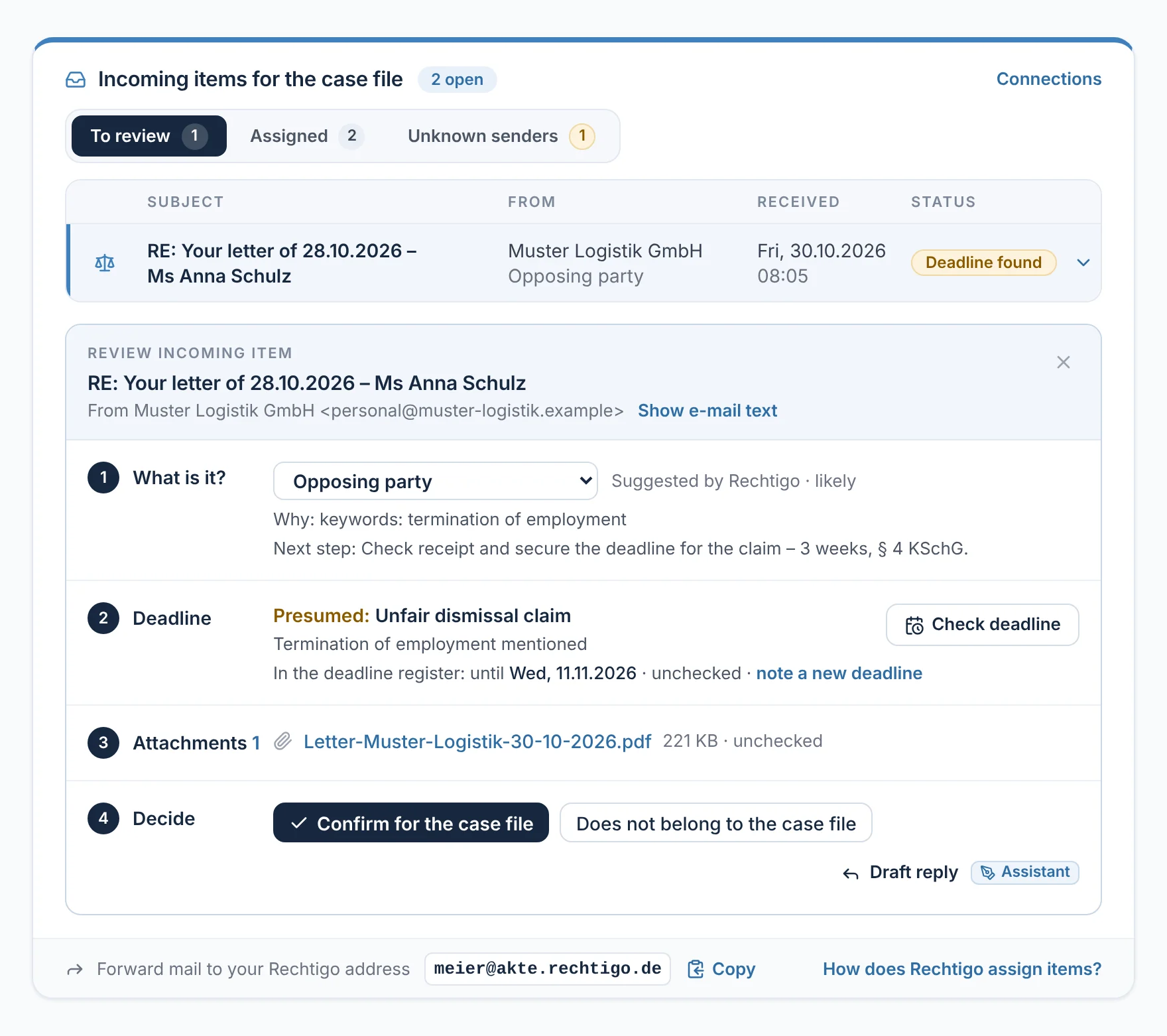
Checking an incoming item has four numbered steps: What is it? – the suggested type with the reason for the assignment. Deadline – only if Rechtigo suspects one. Attachments. Decide – ‘Confirm for case file’ or ‘Does not belong to case file’, next to it ‘Draft reply’. The e-mail text stays collapsed.

  • Rechtigo also detects deadlines and summonses in PDF attachments
  • ‘Inform client’: she only sees your message, never the e-mail
From everyday practice

On 30 October 2026 the employer replies to the letter of 28 October 2026: it is standing by the dismissal. The suspected deadline for filing the claim sits ‘unchecked’ in the deadline register, until 11 November 2026. Lawyer Max Meier checks it against the original notice of dismissal and confirms the item.

How Rechtigo calculates deadlines
rechtigo.de/anwalt/akte
Screenshot from Rechtigo, lawyer view: Four steps, then the item belongs to the case file
In the picture: Lawyer view: checking the reply from her employer in the case file of client Anna Schulz – 1 type and reason, 2 the suspected deadline for filing the claim, 3 the employer's letter as a PDF, 4 ‘Confirm for case file’.
Unassigned

Anything unclear waits until you decide

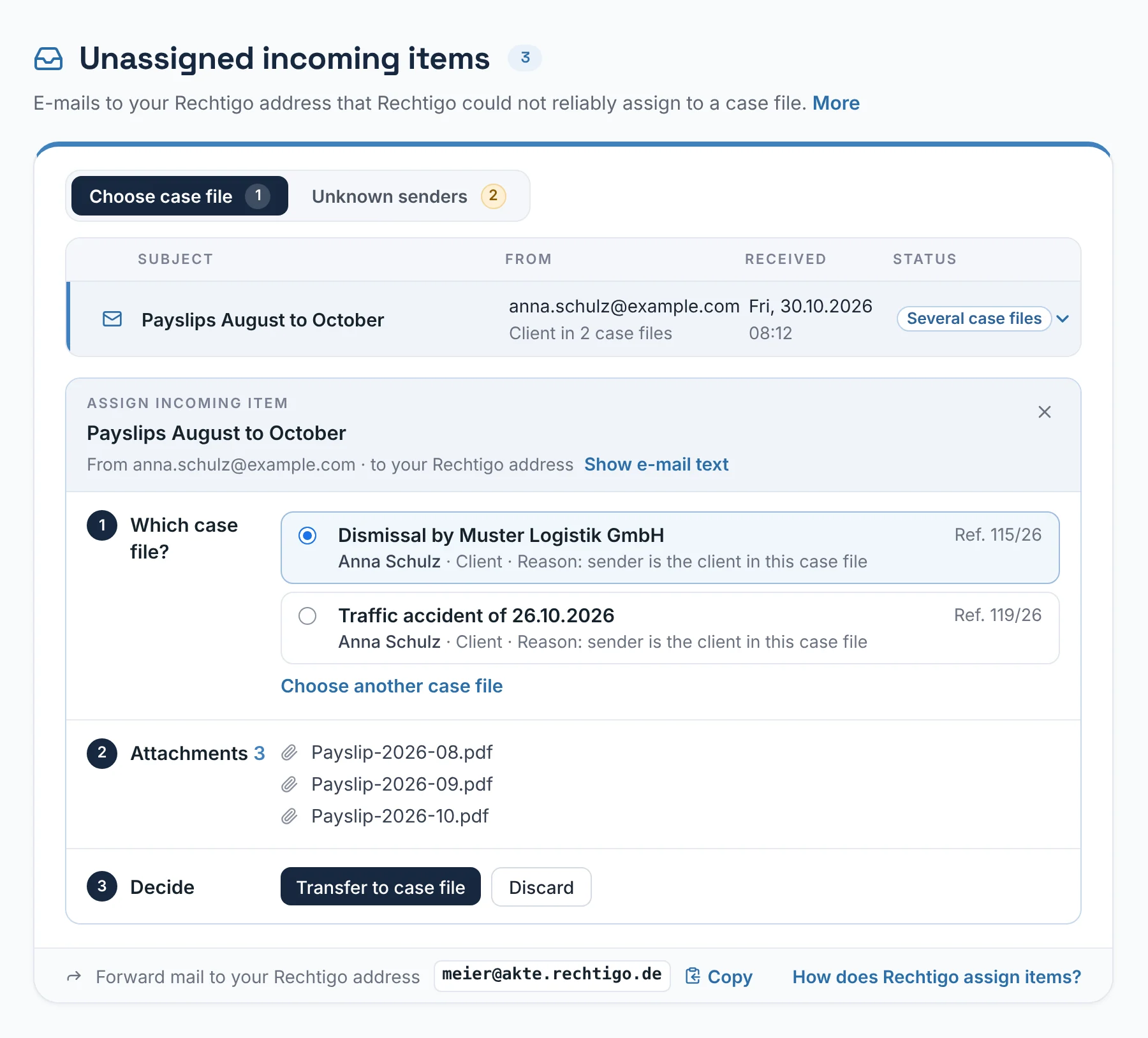
If an e-mail matches several case files, or Rechtigo does not know the sender, nothing is assigned on a guess. The e-mail waits under ‘Unassigned incoming items’, in the ‘Choose case file’ or ‘Unknown senders’ tab. It is checked in steps, just as in the case file; then you move the e-mail into the right case file or discard it.

  • E-mails that failed the sender check appear under ‘Caution’ – they are only assigned when you click
From everyday practice

Client Anna Schulz sends ‘Payslips August to October’ – she is a client in two case files. Rechtigo offers both to choose from, the dismissal case file first.

rechtigo.de/anwalt/eingaenge
Screenshot from Rechtigo, lawyer view: Anything unclear waits until you decide
In the picture: Lawyer view: ‘Unassigned incoming items’ – in the ‘Choose case file’ tab, the payslips from client Anna Schulz, which match two of her case files; opened in three steps, with the dismissal case file selected.
Your client

Your client knows where their case stands

One thread for all messages and a case tracker that shows progress.

Messages

One thread for you and your client

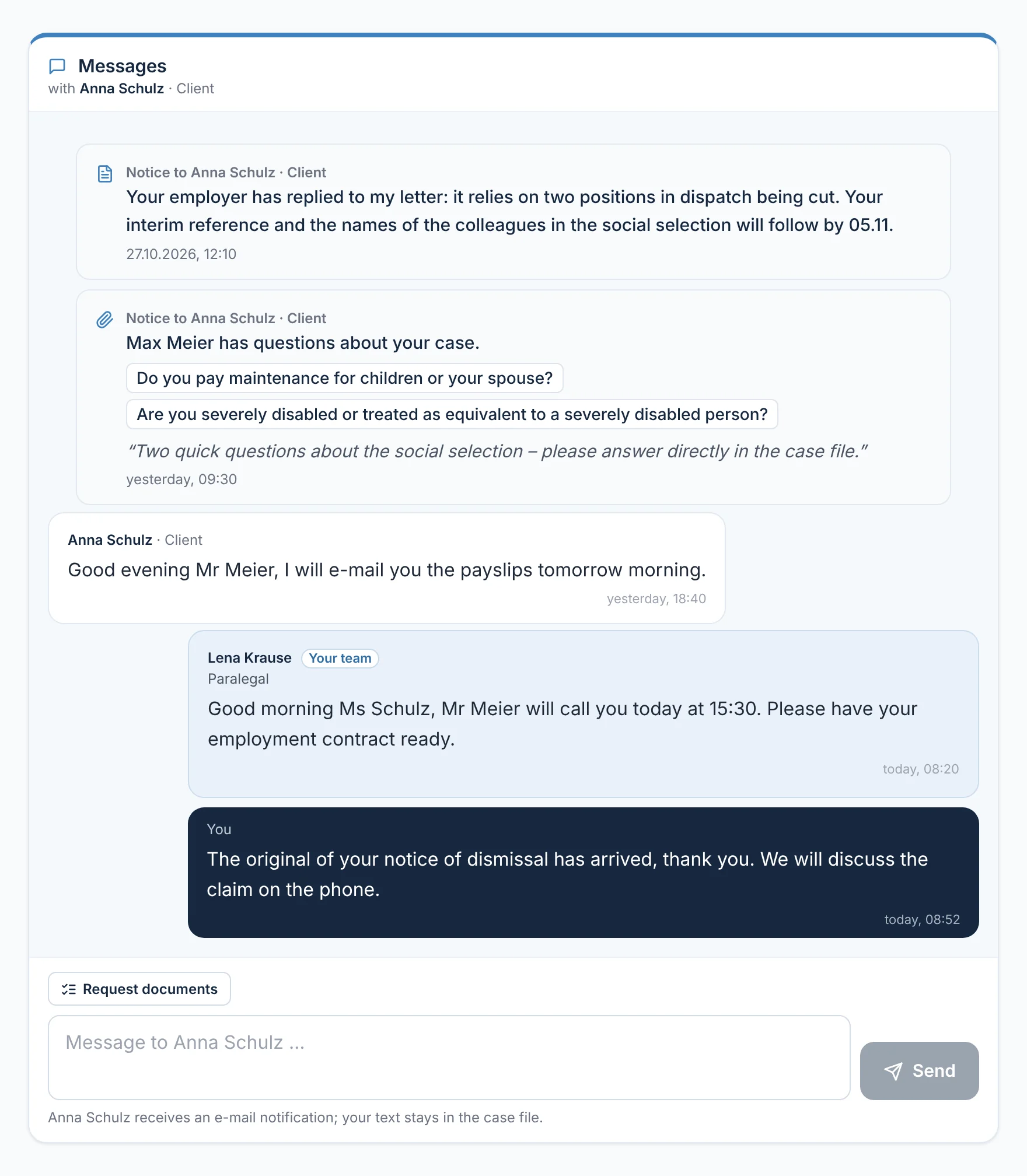
Your messages, those of your client and your team, and notifications such as the confirmation of cover or your queries all appear in one thread – each sender with their role. Your client writes on the left, you and your team on the right. Your client is told about new messages by an e-mail without content, bundled rather than one by one; the text stays in the case file.

  • ‘Request documents’ directly above the input field
  • Your client does not see your internal note
From everyday practice

Client Anna Schulz writes that she will send the payslips by e-mail tomorrow morning. Staff member Lena Krause announces the call at 15:30; lawyer Max Meier confirms that the original notice of dismissal has arrived.

rechtigo.de/anwalt/akte
Screenshot from Rechtigo, lawyer view: One thread for you and your client
In the picture: Lawyer view: the thread in the case file of client Anna Schulz – at the top two notifications to her, below them her message on the left; on the right staff member Lena Krause from your team and your own message.
Papers and documents

Everything your client uploads, in one place

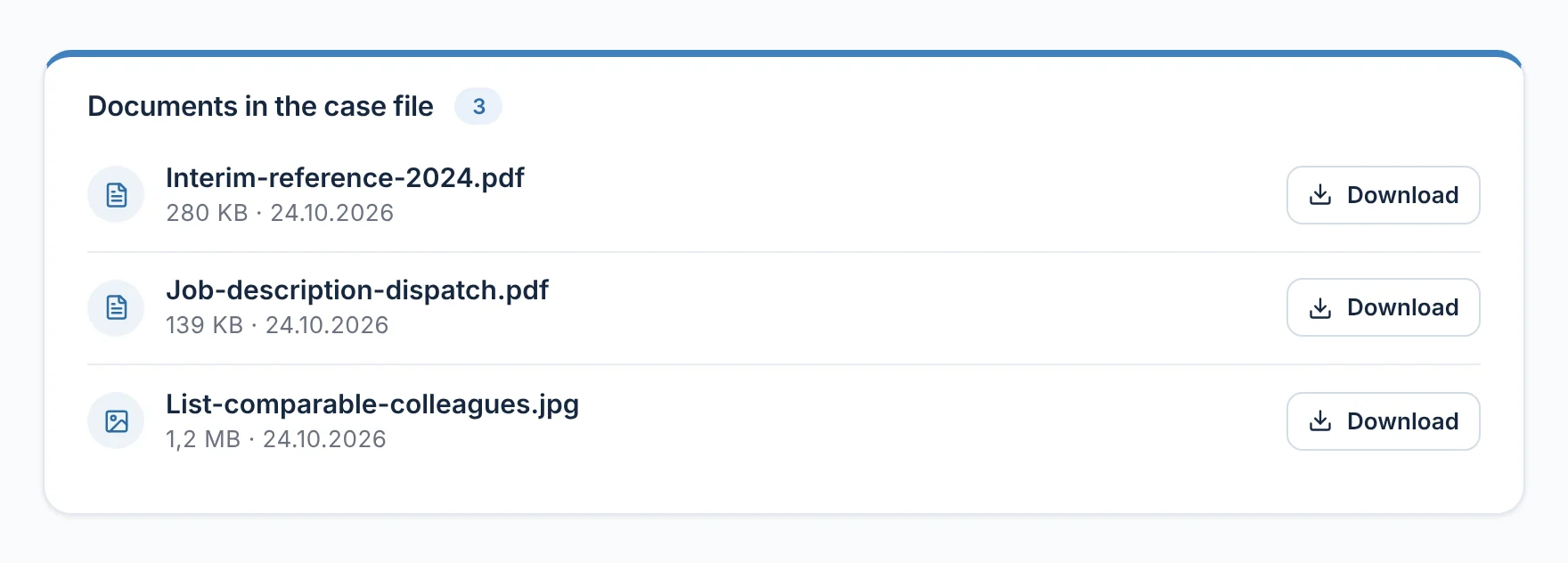
Whatever your client uploads for your checklist appears under ‘Case file documents’ – with date and size, downloadable with one click. Every download is checked and logged. You request the documents you need using the checklist for the area of law.

From everyday practice

On 24 October 2026, client Anna Schulz uploaded her interim reference, her job description and a list of comparable colleagues – lawyer Max Meier needs them for the social selection.

Request documents by checklist
rechtigo.de/anwalt/akte
Screenshot from Rechtigo, lawyer view: Everything your client uploads, in one place
In the picture: Lawyer view: ‘Case file documents’ of client Anna Schulz – interim reference, job description and a list of comparable colleagues, each with ‘Download’.
Case tracker

Your client sees how far their case has come

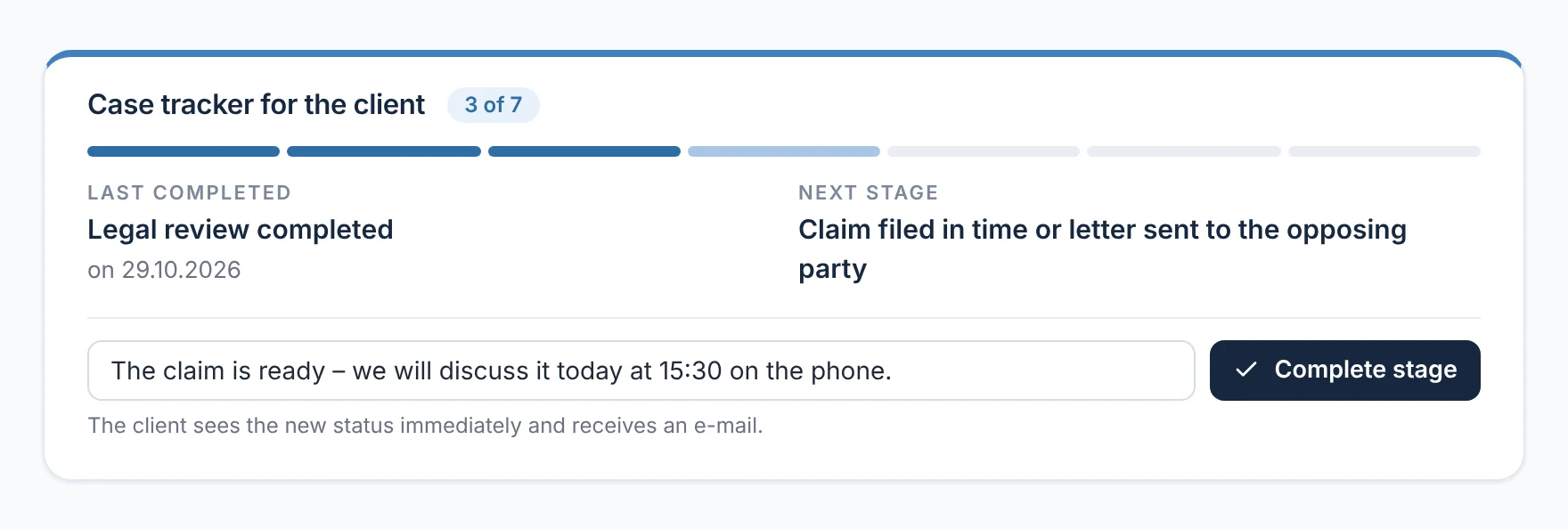
The case tracker takes the case through stages for each area of law, from ‘Mandate granted’ to ‘Case closed’. Rechtigo sets the first two itself as soon as the power of attorney and documents are in. You complete each further stage with ‘Complete stage’ – with a short message to your client if you wish.

  • Your client receives an e-mail for every stage
From everyday practice

Three of seven stages are done, most recently ‘Legal review completed’ on 29 October 2026. A message to client Anna Schulz is ready to send: ‘The claim is prepared – we'll discuss it on the phone today at 15:30.’

rechtigo.de/anwalt/akte
Screenshot from Rechtigo, lawyer view: Your client sees how far their case has come
In the picture: Lawyer view: the case tracker in the case file of client Anna Schulz – three of seven stages done; on the left the most recently completed, on the right the next one, below it your message and ‘Complete stage’.
Client view

How your client sees it

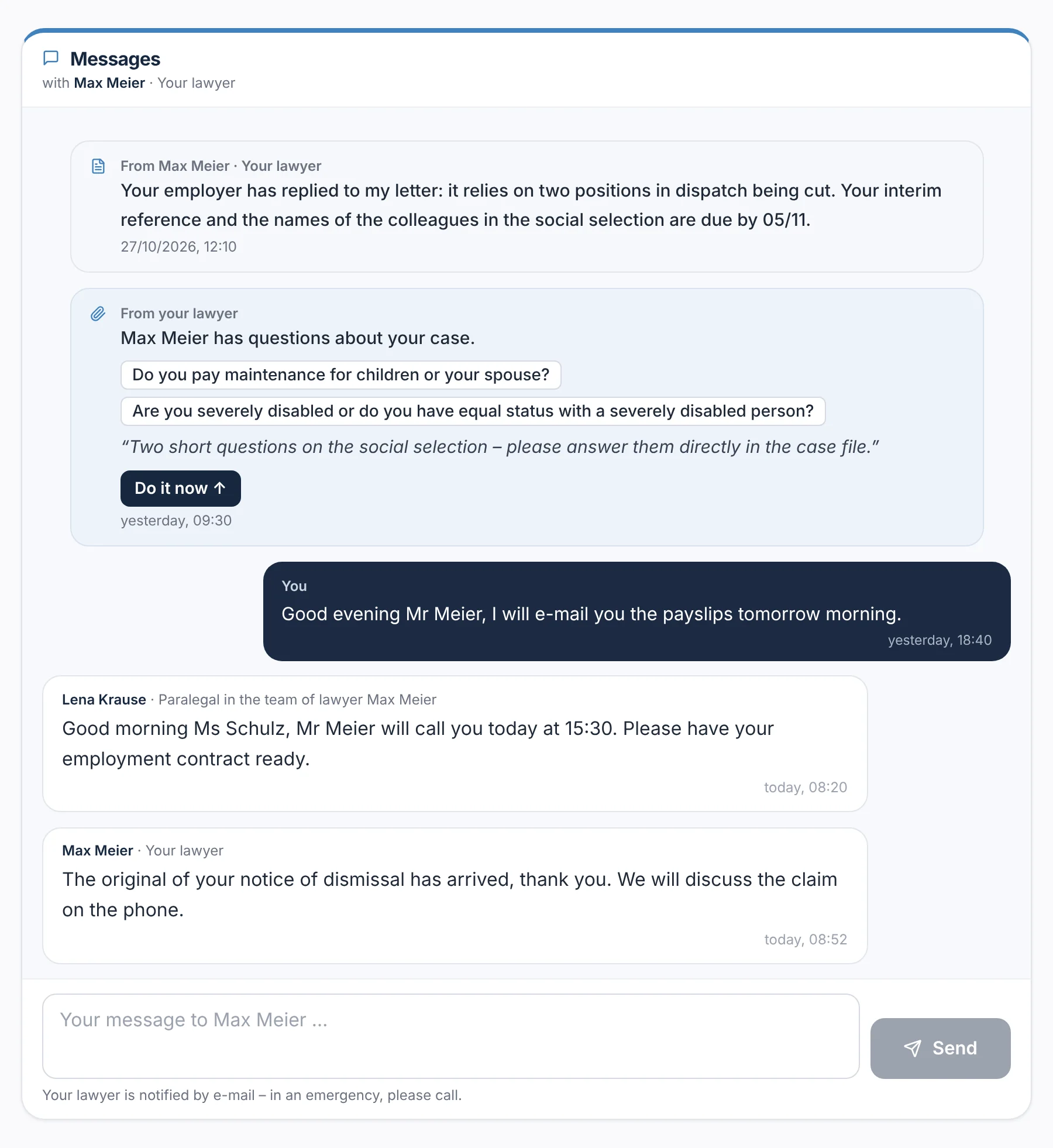
In their case file, your client sees the thread with you and your team, your requests with the ‘Do it now’ button, the case tracker and their documents. Incoming items, internal notes and time recording stay with you.

  • For the client, their own messages are on the right, yours and your team's on the left
  • Every upload appears in the thread – with the document it is meant for
rechtigo.de/fall
Screenshot from Rechtigo, client view: Message thread in the client's case file
In the picture: Client view: the thread in the case file of client Anna Schulz – at the top the queries with ‘Do it now’; her message on the right, on the left staff member Lena Krause and lawyer Max Meier.
More

Also in every case file

Time recording

Timer at the top of the case file, add times later – evaluated per person and per case file.

Team and staff

Business clients

Commercial register, ‘represented by’, contact person and the company's internal reference.

Case file opening sheet

Heading of the case, subject and parties to copy into your practice management software.

Internal & admin

Internal note, upload lock and consents – only for you and your team.

Access for staff

Grant per case file, revoke at any time.

Team and staff

Record the outcome

Case closed? Record the outcome – settlement, success, partial success … with a note, changeable at any time.

Overview

All case files at a glance

Rechtigo sums up what is in the individual case files for you: in the case list and in the daily list.

Case file list

Case files with a deadline come first

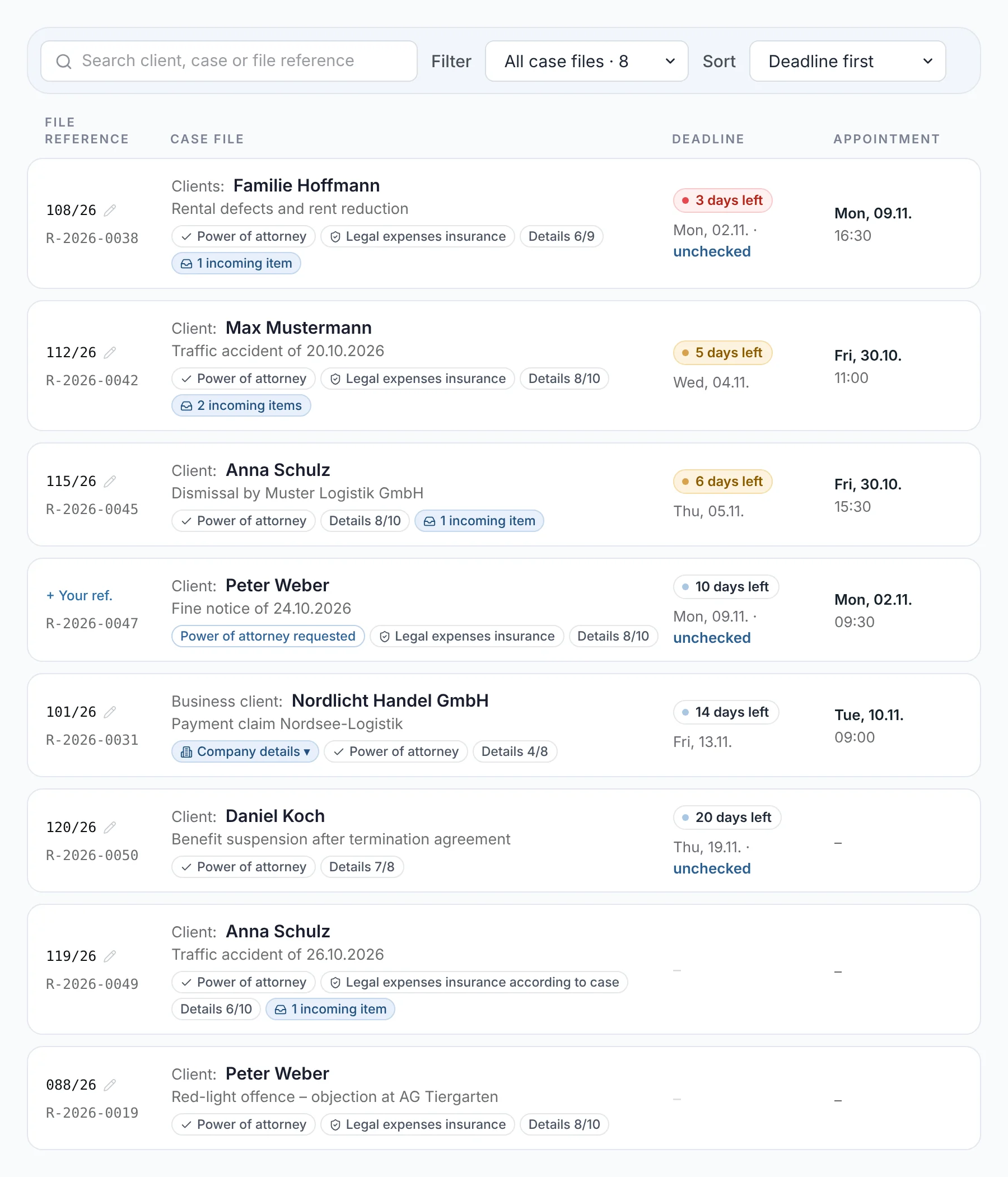
The case list sorts by ‘Deadline first’. Each row names the client and the case, below that power of attorney, legal expenses insurance, details and incoming items, and on the right the next deadline as a traffic light and the next appointment. Filters show ‘With deadline’, ‘With mandate’, ‘With appointment’ or ‘With incoming items’, each with a count. Search finds the client, the case and both file references.

  • Pin case files to the top – sorting and filters are remembered
From everyday practice

At the very top is the case file of clients the Hoffmann family: deadline ‘3 days left’, red and ‘unchecked’, plus ‘1 incoming item’ and the appointment on 9 November. For the business client Nordlicht Handel GmbH, the company details expand in the row with one click.

rechtigo.de/anwalt/akten
Screenshot from Rechtigo, lawyer view: Case files with a deadline come first
In the picture: Lawyer view: the case list, sorted by ‘Deadline first’ – each row with file reference, client and their role, case and status, on the right the deadline and next appointment.
Daily list

Your day on one list – you choose what it shows

In the practice cockpit, the daily list gathers what is coming up: deadlines, follow-ups, appointments, case requests and incoming items. ‘Overdue’ is always at the top and cannot be hidden. Which other sections you see is up to you, under ‘Customise’: Today, To do, Coming up for three, seven or 14 days, and New reminder. You tick off follow-ups directly.

  • Your selection applies to your account – by default without ‘Coming up’
  • Below that, appointment requests and key figures on appointments and reviews
From everyday practice

Lawyer Max Meier leaves out ‘Coming up’ – what is overdue and due today is enough for him. On 30 October 2026, ‘Today’ shows six entries, including the phone consultation with client Anna Schulz at 15:30.

rechtigo.de/anwalt/dashboard
Screenshot from Rechtigo, lawyer view: Your day on one list – you choose what it shows
In the picture: Lawyer view: the daily list in the practice cockpit on 30 October 2026 with the ‘Customise daily list’ window open – ‘Overdue’ always visible; Today, To do and New reminder selected, ‘Coming up’ off.
Questions

Frequently asked questions

Your question isn't here? Write to us at support@rechtigo.de.

Can I use my own file reference?

Yes. Every case file has a fixed Rechtigo number, such as R-2026-0045; you enter your own file reference in the case list, in the header of the case file or when handing over to your practice management software. Rechtigo files post using either.

How long do documents stay in the case file?

For as long as the case is running. After it is closed, uploaded files stay for 60 days; Rechtigo reminds you and your client 14, 7 and 1 day before deletion. The case description, case letter, messages and deadlines stay in the case file.

Does my client see the outcome I record?

No. Rechtigo only evaluates case outcomes in aggregate per area of law – as percentages, without the case, names or lawyer, and only once there are 30 closed cases.

Can I also work on the case file on my phone?

Yes, in the browser. On a phone, the case file splits into the ‘Case file’ and ‘Messages’ tabs; the number on the ‘Case file’ tab shows what is waiting for you.

Can I edit or delete a message I have sent?

No, and neither can your client: every message stays in the thread with sender and time, exactly as it was written. Anything your client should not read belongs in the internal note.

Founding programme

Join the waitlist now

Rechtigo costs from €99 a month, €0 per mandate; the first 50 lawyers per city start in the Founding programme with three months free.

Rechtigo launches on 15 January 2027 – we will let you know as soon as registration opens.