Skip to content
RECHTIGO
All features for lawyers
Rechtigo Assistant

The Assistant drafts. You decide.

The Rechtigo Assistant drafts replies to incoming letters, the first letters for new mandates and every letter from your templates. It uses only facts from the case file; anything missing, it flags. Only what you have approved is sent.

rechtigo.de/anwalt/akte
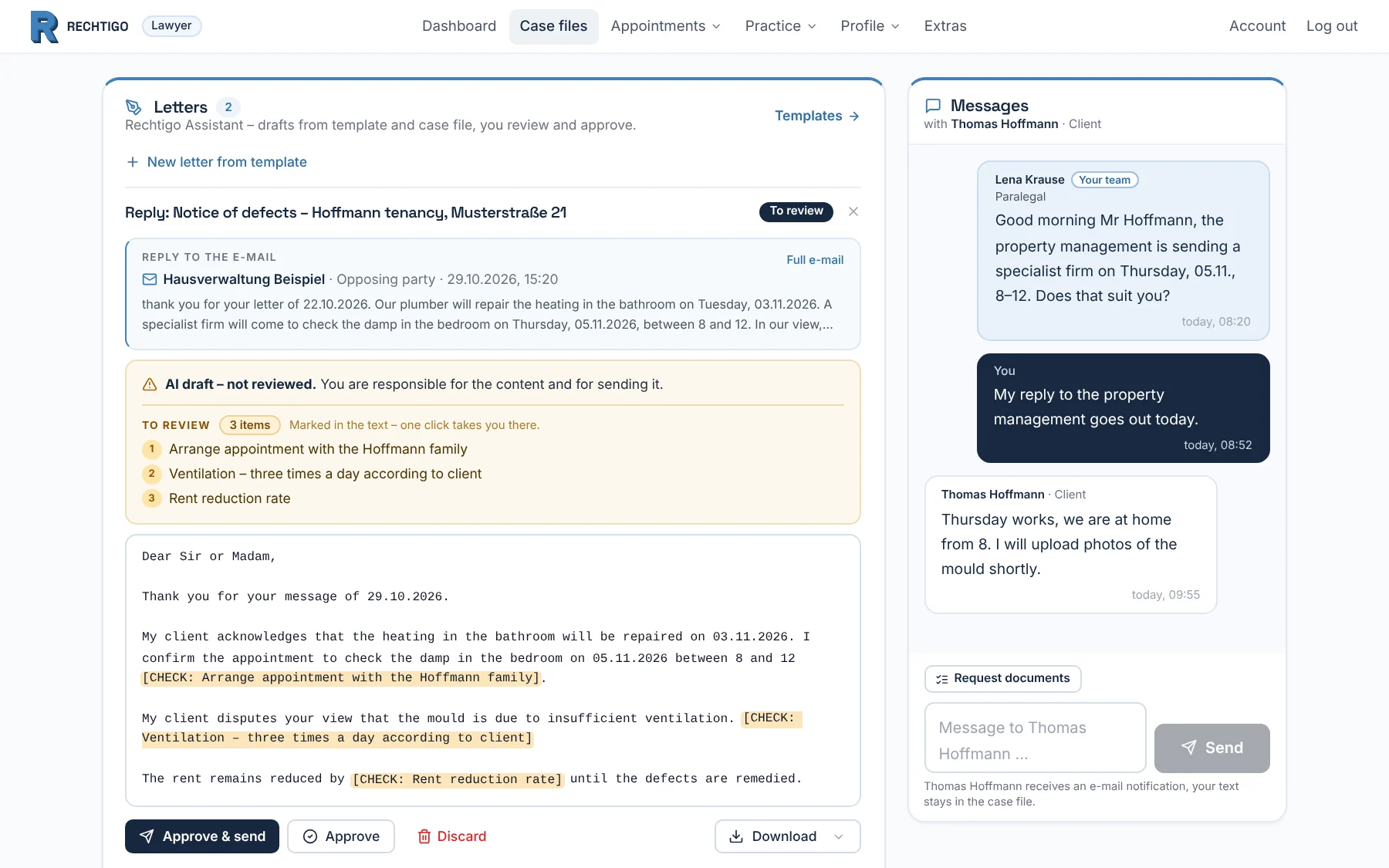
Screenshot from Rechtigo, view for lawyers: The Assistant drafts. You decide.
Pictured: View for lawyers: the case file of the clients, the Hoffmann family – on the left the draft reply to the landlord, Hausverwaltung Beispiel, with three flagged points; on the right client Thomas Hoffmann confirms the appointment.

Reply to post

The reply to an incoming item is created from the e-mail and the case file.

New mandate

With the power of attorney, the letters of your work cycle are ready as drafts.

Your templates

Your text with placeholders, filled with values from the case file.

Nothing made up

Anything not in the case file stays open for you as [CHECK: …].

What the Assistant takes off your hands

The first draft is already in the case file

For the letters that recur in every mandate, you no longer start from scratch.

From draft to letter

How your letter goes out

Under every incoming item there is ‘Draft reply’: one line of instruction is enough, and the Assistant drafts the reply from the e-mail and the case file data. In Rechtigo you edit the draft as text. Only after your approval does it go out: as an e-mail, with the letter attached if you wish.

  • Letters from templates always go out with the letter as a PDF
  • View any draft as a letter, download it as a PDF or DOCX file
From everyday practice

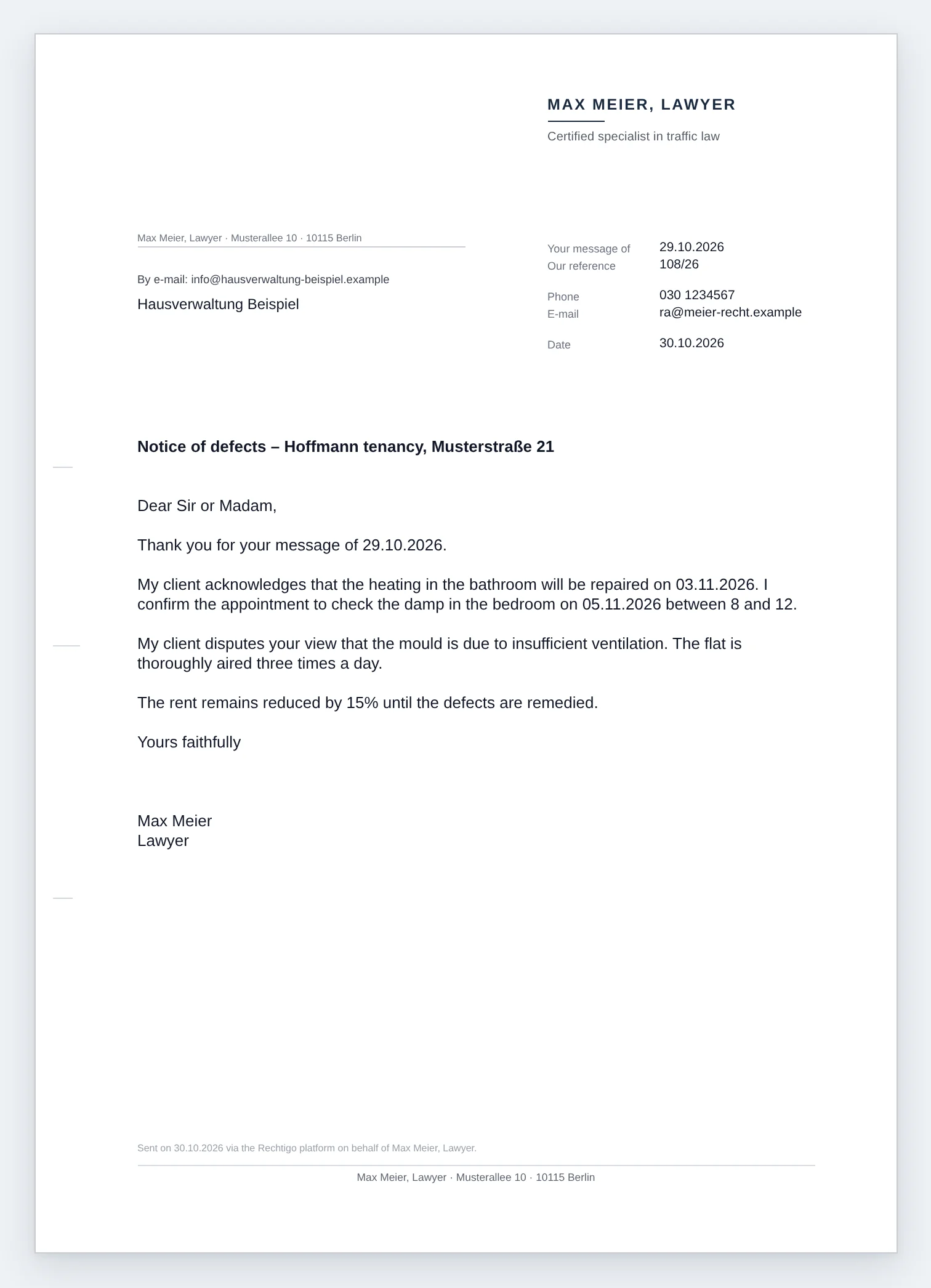
Lawyer Max Meier completes the three points, approves and attaches the reply as a letter. The landlord, Hausverwaltung Beispiel, receives his e-mail with the letter as a PDF – to DIN 5008, not as text from an input field.

In Rechtigo
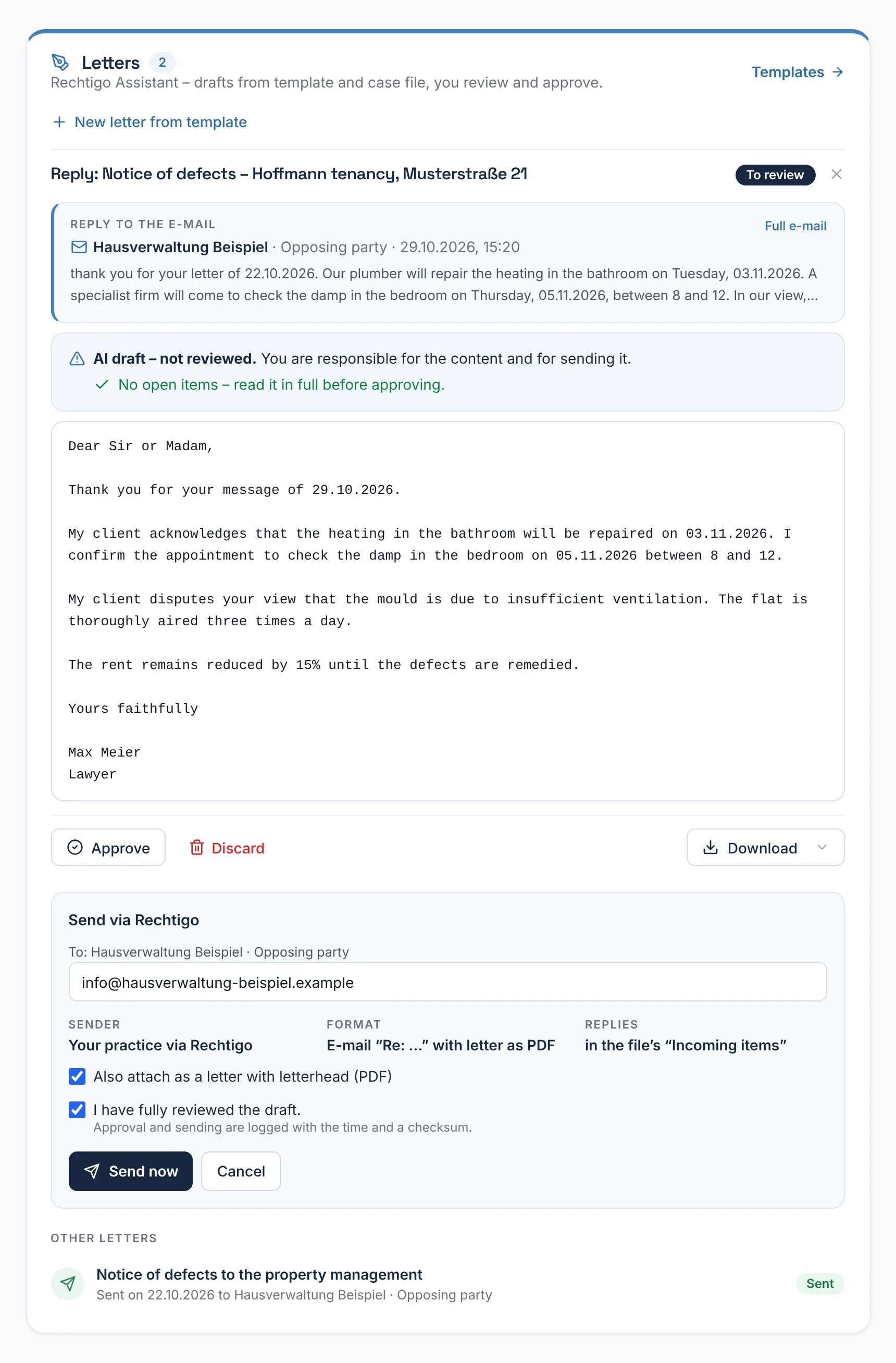
rechtigo.de/anwalt/akte
Screenshot from Rechtigo, view for lawyers: How your letter goes out – In Rechtigo
Pictured: View for lawyers: the reply to the landlord, Hausverwaltung Beispiel, in the case file of the clients, the Hoffmann family – fully completed, at the bottom sending with ‘Also attach as a letter with letterhead (PDF)’.

As a PDF

Antwort_Maengelanzeige_Mietverhaeltnis_Hoffmann.pdf
Page 1 of the PDF from Rechtigo: How your letter goes out – As a PDF
Pictured: View for lawyers: the same text as a letter, as it arrives – lawyer Max Meier's letterhead, address field ‘by e-mail’, on the right ‘Your message of’, reference and date, below it the subject line.
Suggestions

The Assistant suggests what comes next

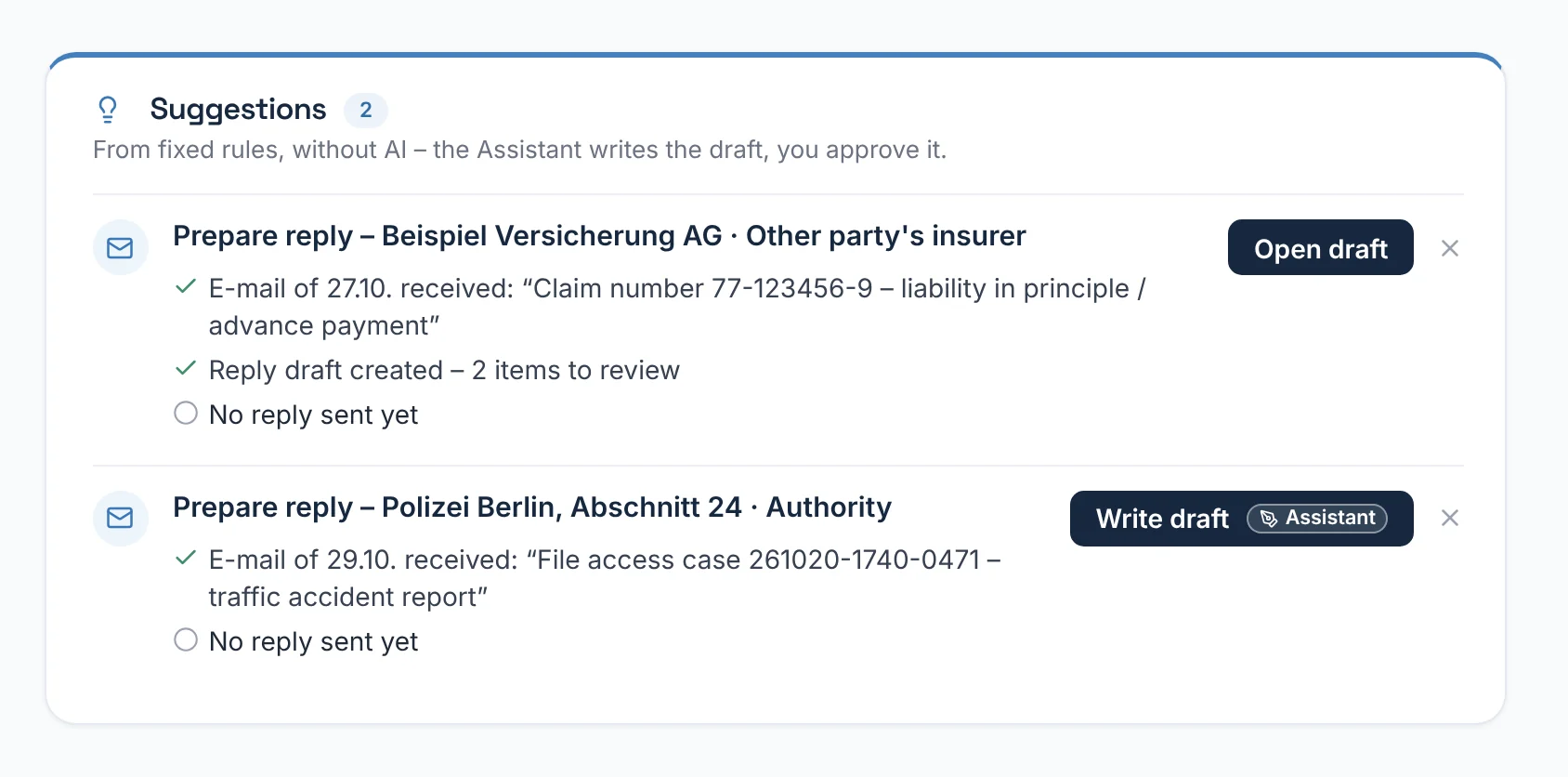
In the case file, suggestion cards show which letter fits now: for a new incoming item, the reply; after the power of attorney, the first letter; once documents are complete, the next one. The cards follow fixed rules, without AI. Each states its reasons and leads to the draft with one click.

  • What's done is ticked off, what's open stays visible – for example ‘No reply sent yet’
From everyday practice

For the e-mail from Beispiel Versicherung AG of 27.10., the draft reply has already been created, with two points to review – ‘Open draft’ takes you there. For the e-mail from Berlin Police of 29.10., ‘Write draft’ is ready.

rechtigo.de/anwalt/akte
Screenshot from Rechtigo, view for lawyers: The Assistant suggests what comes next
Pictured: View for lawyers: ‘Suggestions’ in client Max Mustermann's case file – for the e-mail from the opposing insurer, the reply is already prepared; for the e-mail from Berlin Police, the Assistant writes it with one click.
Work cycles

New mandate: the first letters are ready

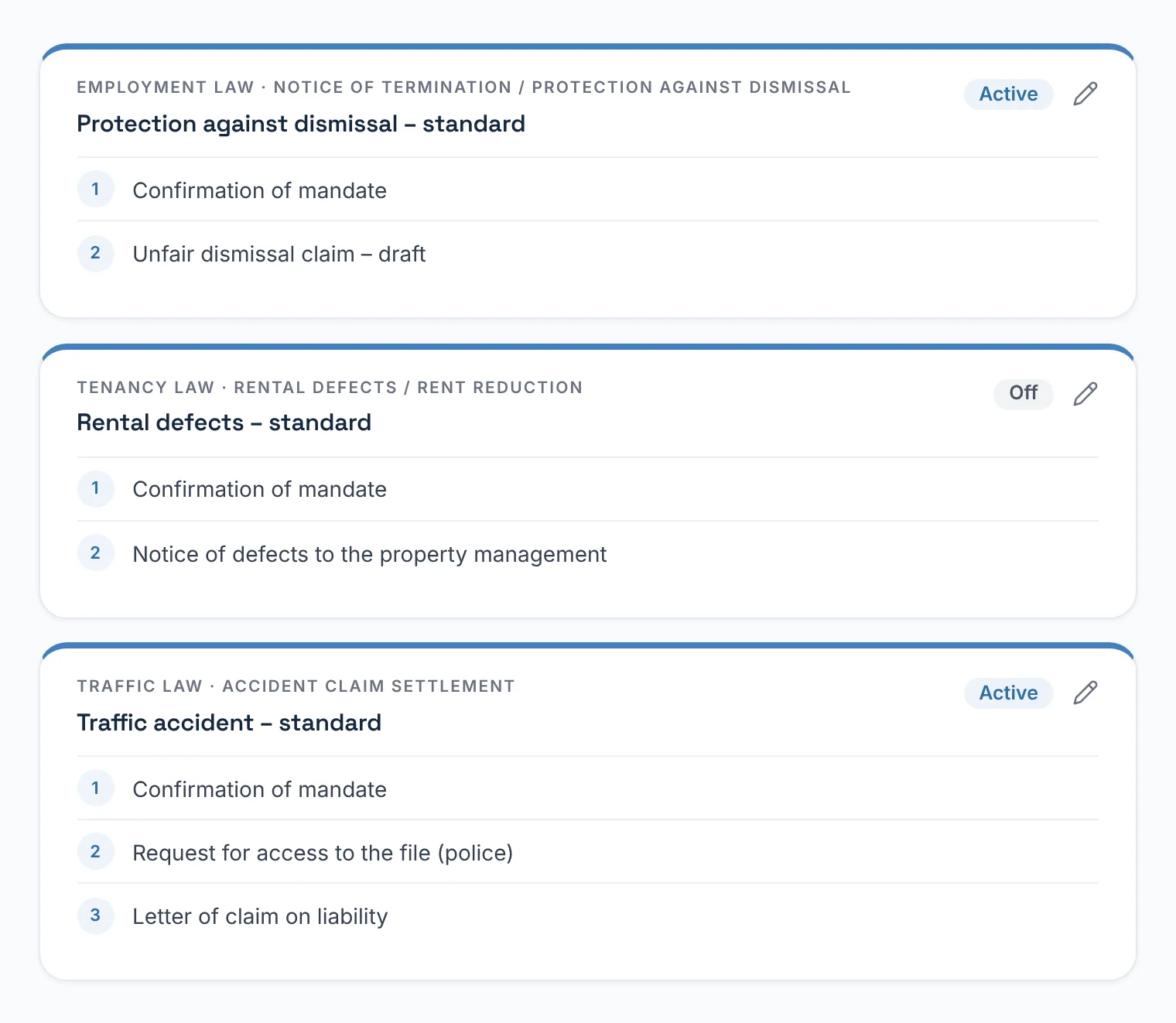
Under ‘Practice → Work cycles’ you set, for each area of law and, if you wish, each case type, which letters are created for a new mandate – up to twelve templates in your order. Once the power of attorney is signed, they are in the case file as drafts, together with the task of reviewing them. Nothing is sent automatically.

  • A cycle for the case type takes precedence over the general one
From everyday practice

For unfair dismissal protection, lawyer Max Meier has set two letters: mandate confirmation and unfair dismissal claim. When a new client signs the power of attorney after her dismissal, both are in her case file as drafts – for review, not sent.

More on Case file from an incoming expert report
rechtigo.de/anwalt/arbeitszyklen
Screenshot from Rechtigo, view for lawyers: New mandate: the first letters are ready
Pictured: View for lawyers: your work cycles – for each area of law the letters in your order, for example ‘Dismissal protection – standard’ with mandate confirmation and unfair dismissal claim.
Why you can trust it

Nothing made up, nothing sent without your approval

The Assistant takes only facts from the case file, you see gaps straight away – and every letter waits for your approval.

Review markers and data protection

Only values from the case file – names and numbers stay on the platform

If a value is missing from the case file, the point remains as [CHECK: …]; above the text, ‘To review’ counts the open points, and one click takes you there. Before a text goes to the AI, the platform replaces names, addresses, case reference numbers, insurance, claim and file numbers as well as licence plates with placeholders. After the response, it puts the original values back in.

Review markers stayThe AI may not remove review markers from your template – if one is missing, the platform reports it.
Two layersThe case file fields plus pattern recognition in free text. It does not recognise third-party names without a form of address.
Data centre in the EUCase file data is processed only by an AI provider with a data centre in the EU.
No trainingNo training on client data takes place.
Approval

Approval with a tick and a log – only then is it sent

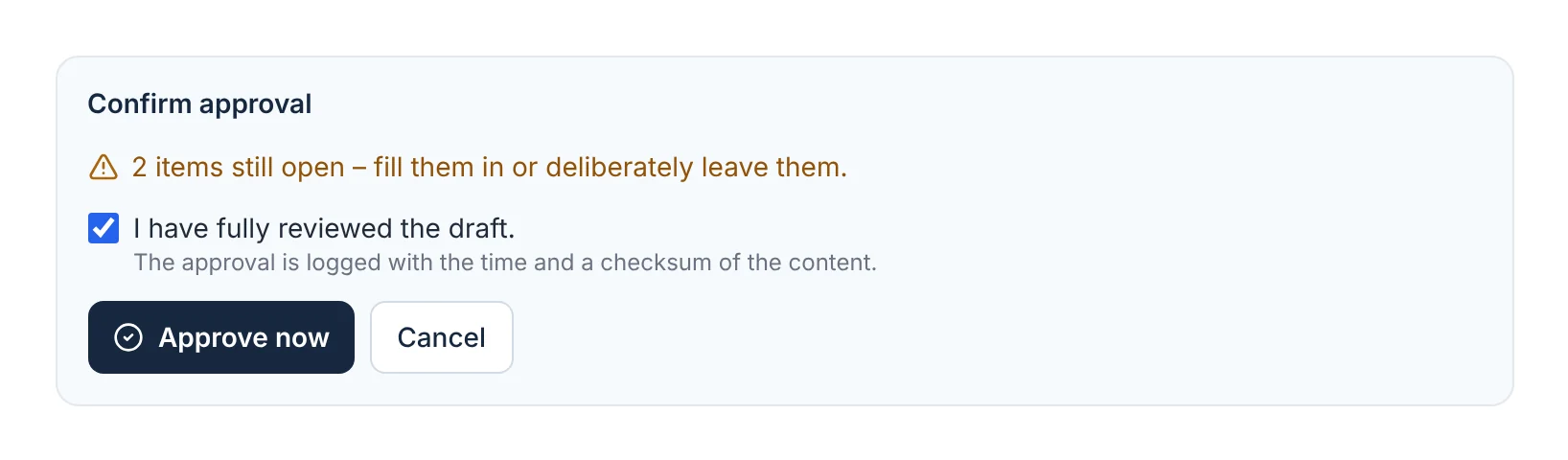
Until approval, every draft carries the banner ‘AI draft – not reviewed’. Only the tick ‘I have reviewed the draft in full.’ unlocks ‘Approve now’ – logged with a timestamp and checksum.

  • With open review markers, ‘Send now’ stays locked
  • Then a follow-up ‘Await reply’ in 14 days
From everyday practice

Two points are still open. Lawyer Max Meier fills them in, ticks the box and approves. Only then does ‘Send now’ send the letter out – none goes out with gaps.

rechtigo.de/anwalt/akte
Screenshot from Rechtigo, view for lawyers: Approval with a tick and a log – only then is it sent
Pictured: View for lawyers: ‘Confirm approval’ – the note about two open points, the mandatory tick box and ‘Approve now’.
Set up once

Your templates – usable in every case file

You create your letters once; the Assistant writes using your wording.

Templates

Your text, your wording – a draft in every case file

Under ‘Practice → Templates’ you create your letters once: title, area of law, if you wish case type and recipient, plus the text with placeholders such as {{mandant_name}}. In every case file with a signed power of attorney, you choose one of them under ‘New letter from template’ and say in one line what the letter should achieve.

  • You mark points that only a person can assess yourself with [CHECK: …]
  • You adopt the platform's standard templates with ‘Copy’
From everyday practice

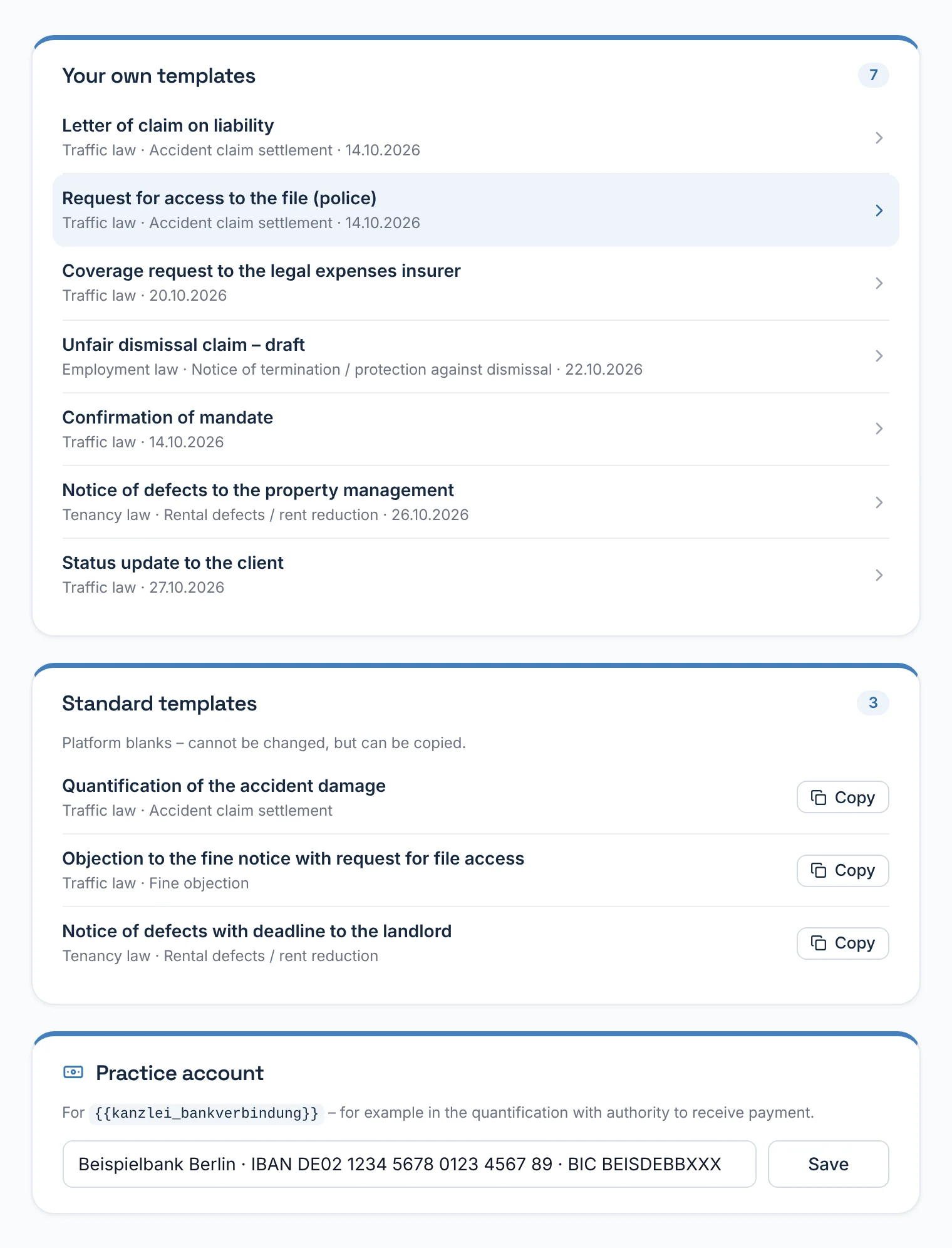
Lawyer Max Meier has created seven of his own templates in three areas of law, for example ‘Unfair dismissal claim – draft’ in employment law. Below them are three standard templates from the platform.

rechtigo.de/anwalt/vorlagen
Screenshot from Rechtigo, view for lawyers: Your text, your wording – a draft in every case file
Pictured: View for lawyers: ‘Templates’ – your own templates with area of law and date, below them the platform's standard templates to copy.
More

Also included

Draft status

‘To review’, ‘Approved’, ‘Sent’ or ‘Discarded’ – with open points for each draft.

Origin in the draft

Every draft shows where it comes from: an answered e-mail, a work cycle or a template.

In the lawyer team

With team access, colleagues see the case file's drafts – with names.

Accident automation

Accident templates fill themselves from the accident data in the case file.

Case file from an incoming expert report
Questions

Frequently asked questions

Your question isn't here? Write to us at support@rechtigo.de.

What exactly goes to the AI?

The template or e-mail, your instruction and the case file data – names, addresses and numbers only as placeholders. The content of attachments only if you tick it.

Can the Assistant send anything without me?

No. The only thing sent automatically is an accident template in the traffic law workflow – and only if you have switched that on for this template.

Do I need activation for the Assistant?

Yes, for drafts where the AI writes text – replies and letters from templates. You apply for it under ‘Extras’; as a rule, the Assistant is activated on the next working day, with your templates and your letterhead. Until then, you can create three trial drafts. Suggestions, work cycles and accident automation do not need activation.

Does the client see the drafts?

No. Only after sending does their message history show that you have sent the letter.

Can staff create or approve drafts?

No. Only lawyers may create, approve and send drafts – even in case files you have shared with staff.

Founding programme

Join the waitlist now

Rechtigo costs from €99 a month, €0 per mandate; the first 50 lawyers per city start in the Founding programme with three months free.

Rechtigo launches on 15 January 2027 – we will let you know as soon as registration opens.