Skip to content
RECHTIGO
All features for clients
Your case file

Everything about your case on one page

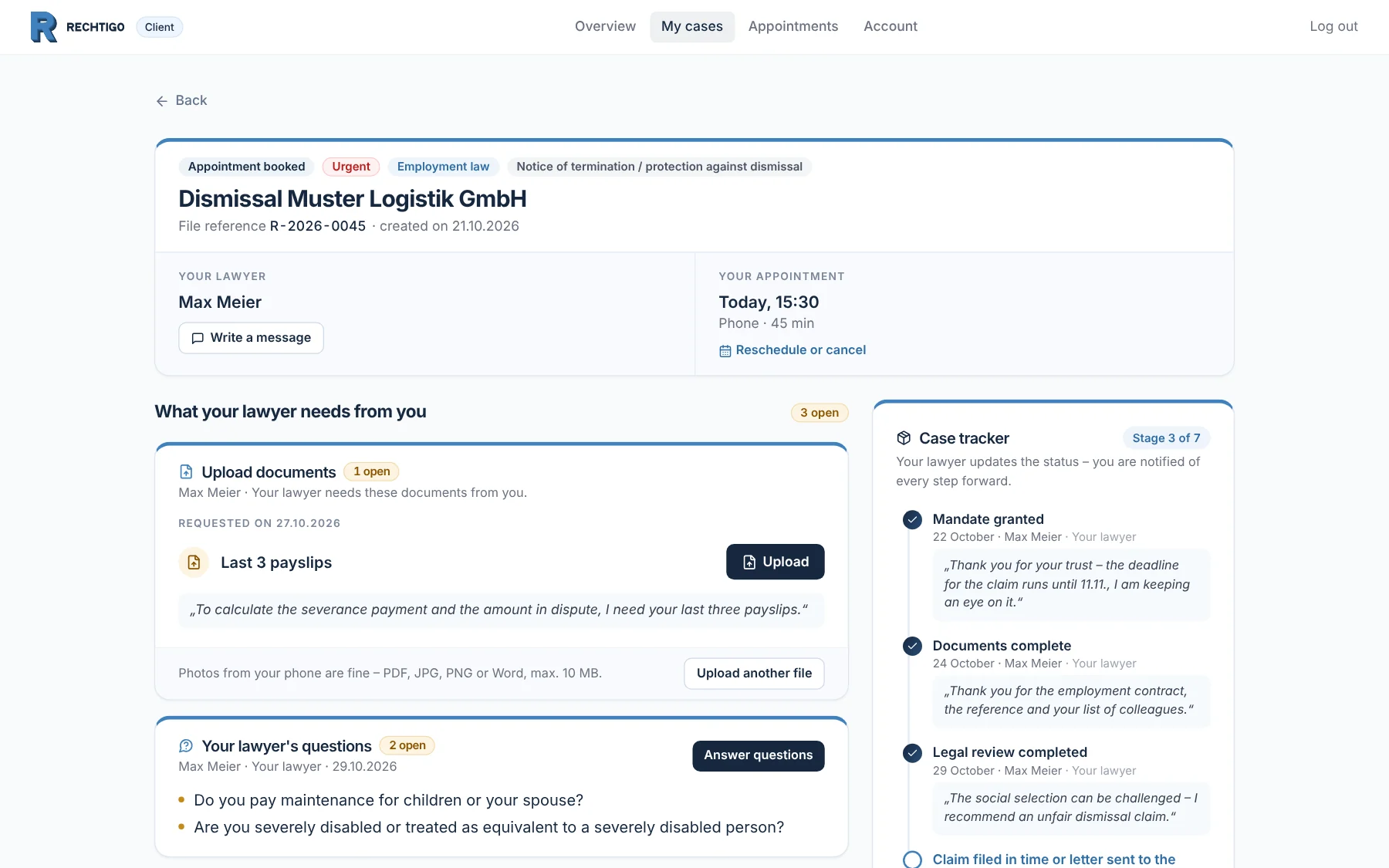
In your case file you first see what your lawyer needs from you. Next to it you see how far your case has progressed – and below, all messages, your power of attorney and your documents.

rechtigo.de/fall
Screenshot from Rechtigo, client view: Everything about your case on one page
Pictured: Client view: the case file of client Anna Schulz on 30.10.2026 – on the left, what her lawyer still needs (payslips, two questions), on the right the case tracker with three stages reached.

What your lawyer needs

Outstanding documents and questions are right at the top.

Messages

With your lawyer and their team in one thread.

Digital power of attorney

Sign on screen – no printer needed.

Case tracker

You see which stage has been reached and what comes next.

Documents

Upload item by item

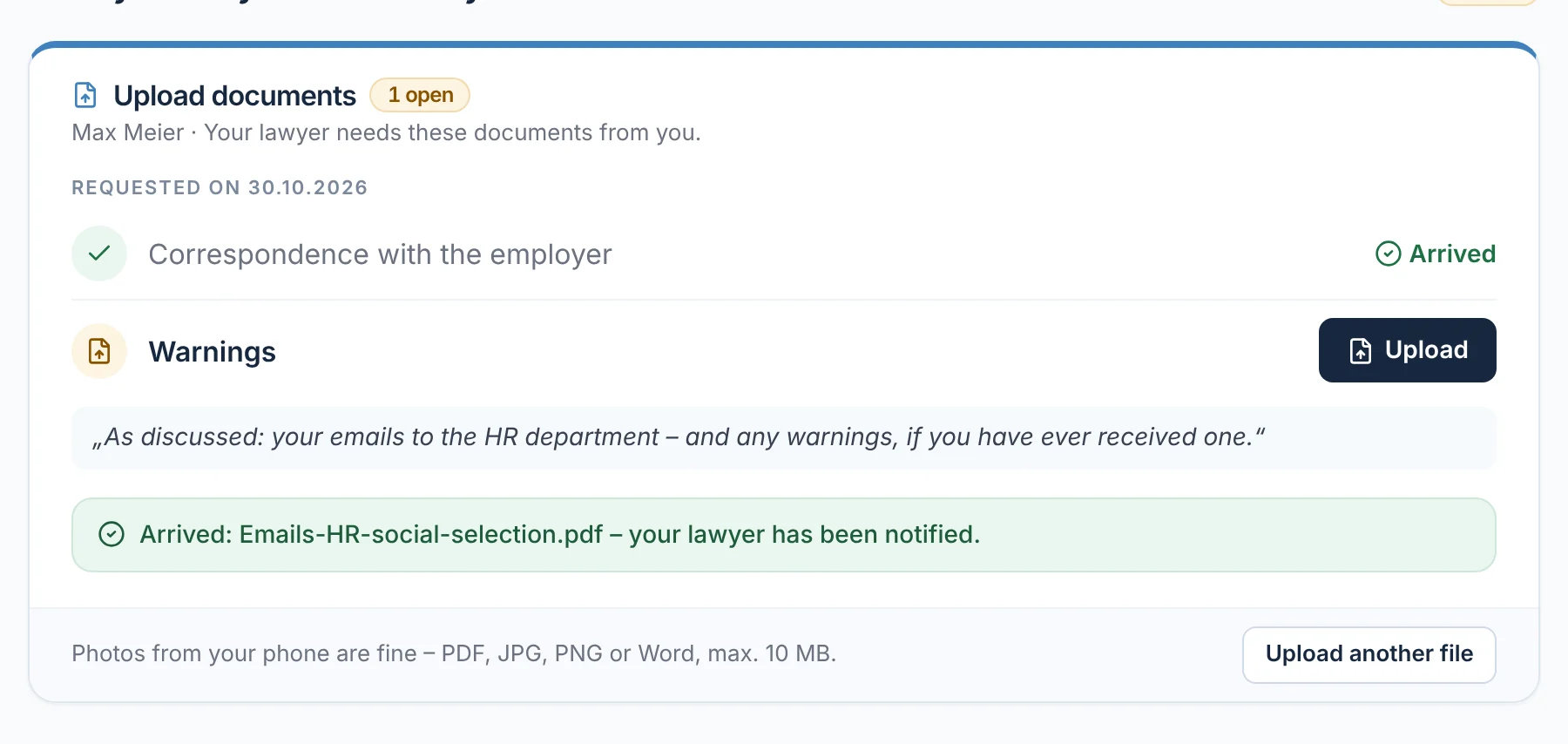
Your lawyer requests what they need – based on a checklist for your area of law. You upload each document in its place; photos from your phone are fine. Once a file is in, it says ‘Received’ and your lawyer is notified. As soon as everything is there, the case tracker shows ‘Documents complete’.

  • Photos, PDFs and text documents, up to 10 MB per file
From everyday practice

On 30.10.2026, lawyer Max Meier asks client Anna Schulz for her e-mails to the HR department. She uploads the file at 17:12 – he finds it straight away in his case file.
rechtigo.de/fall
Screenshot from Rechtigo, client view: Upload item by item
Pictured: Client view: the ‘Upload documents’ card in the case file of client Anna Schulz – the correspondence with her employer has been received, the warning letters are still outstanding.
Messages

One thread with your lawyer and their team

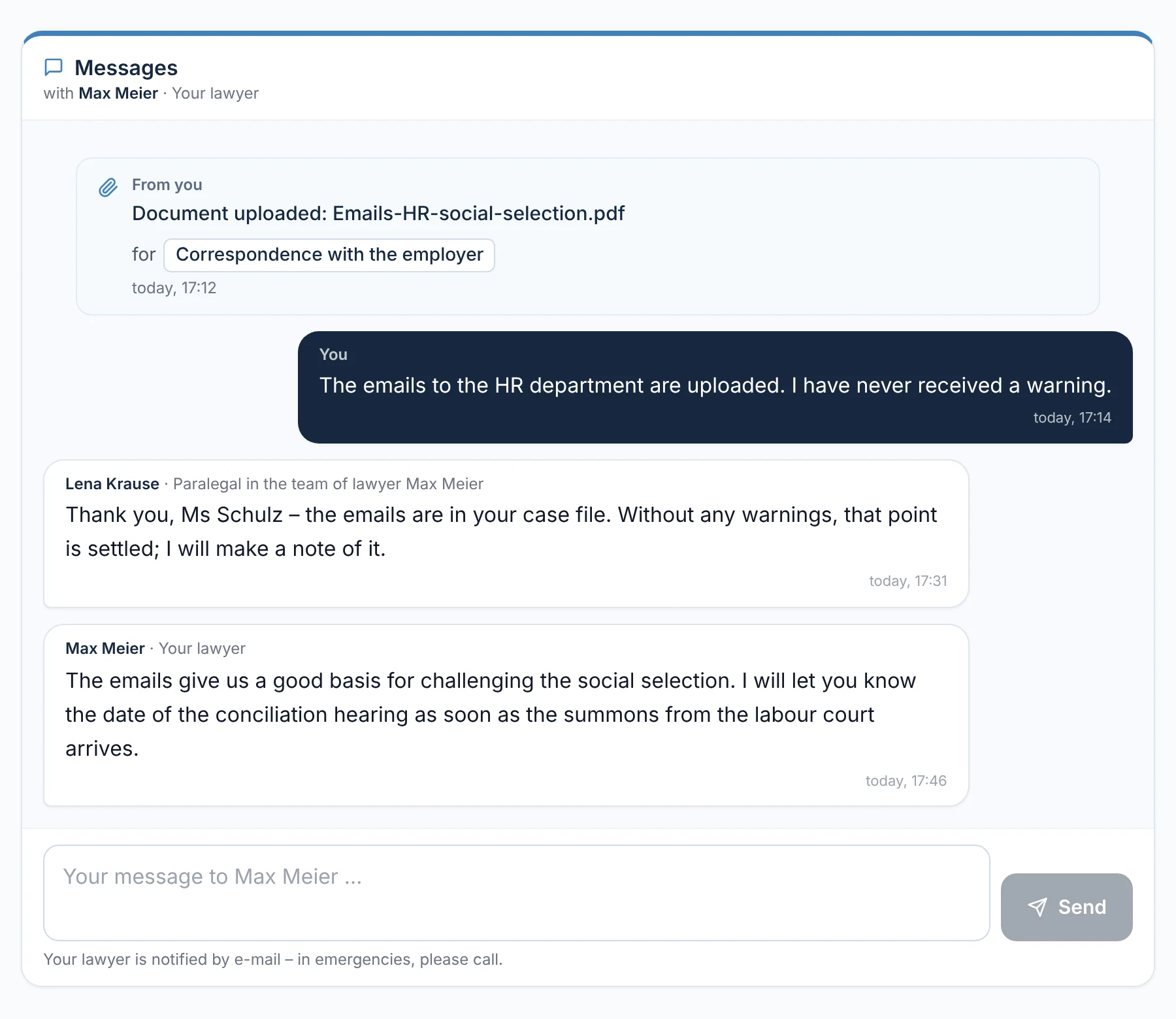
All messages about your case are in one thread: yours on the right, those from your lawyer and their team on the left – each with name and role. Uploaded files appear there as an entry. Rechtigo lets you know about new messages by e-mail, bundled and without the content.

  • You send files via ‘Upload documents’ – they then also appear in the thread
From everyday practice

Client Anna Schulz writes that she never received a warning letter. Staff member Lena Krause confirms receipt; a quarter of an hour later, lawyer Max Meier replies about the conciliation hearing.

rechtigo.de/fall
Screenshot from Rechtigo, client view: One thread with your lawyer and their team
Pictured: Client view: the messages of client Anna Schulz – her upload and her message on the right, on the left the replies from staff member Lena Krause from the team and from lawyer Max Meier.
Power of attorney

Sign on screen

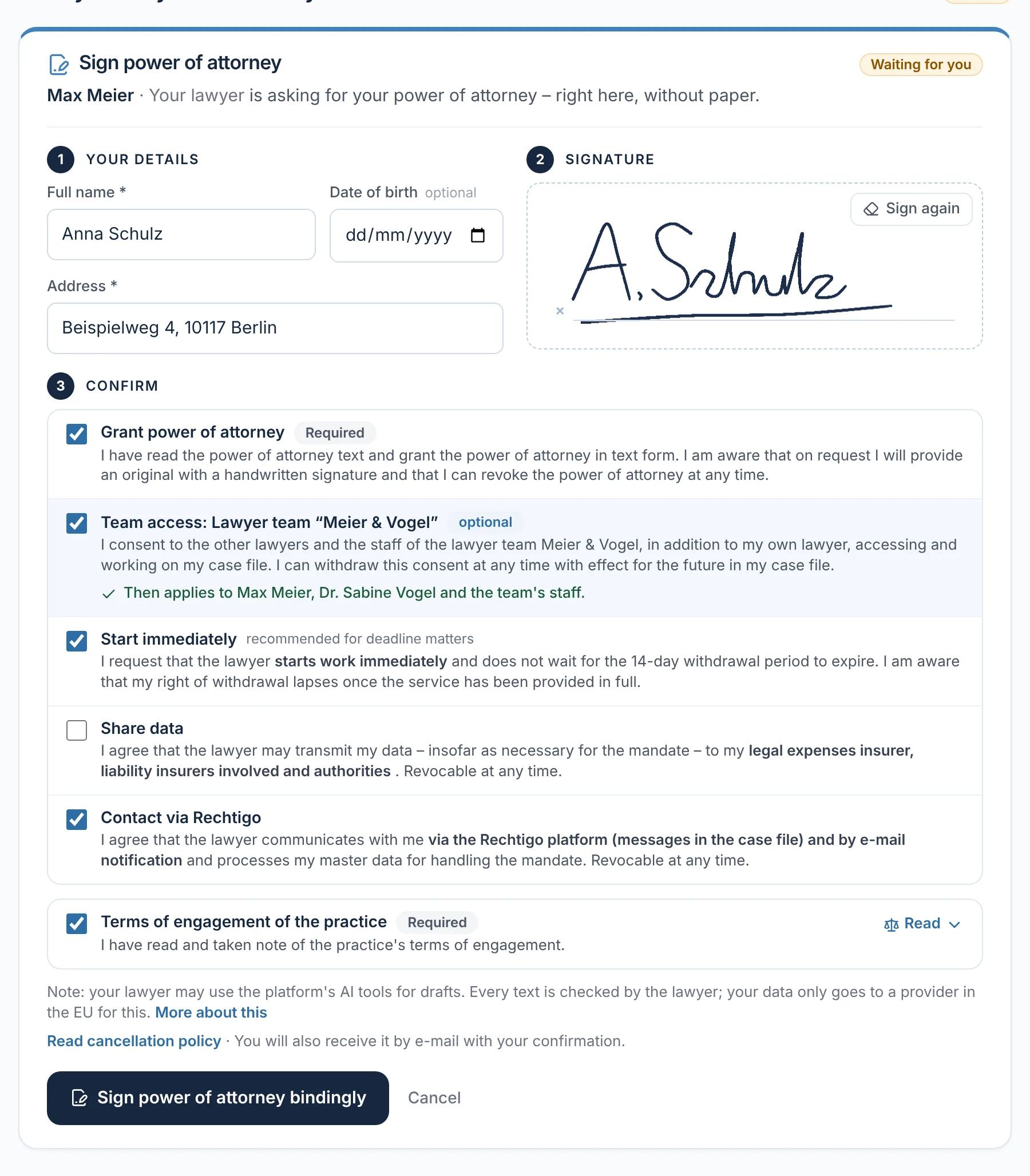
If your lawyer asks for your power of attorney, you sign directly in your case file – with a mouse or your finger. You confirm each consent separately; optional items are marked. You can view your granted power of attorney at any time, save it as a PDF or revoke it.

From everyday practice

Client Anna Schulz signs on 22.10.2026 at 18:05, shortly after her video consultation. She ticks ‘Start immediately’ because of the deadline for filing a claim, but not ‘Share data’ – she has no legal expenses insurance.

rechtigo.de/fall
Screenshot from Rechtigo, client view: Sign on screen
Pictured: Client view: the power of attorney of client Anna Schulz for lawyer Max Meier before signing – details, signature and each consent separately; ‘Share data’ is optional.
Legal expenses insurance

Photograph your policy instead of typing it in

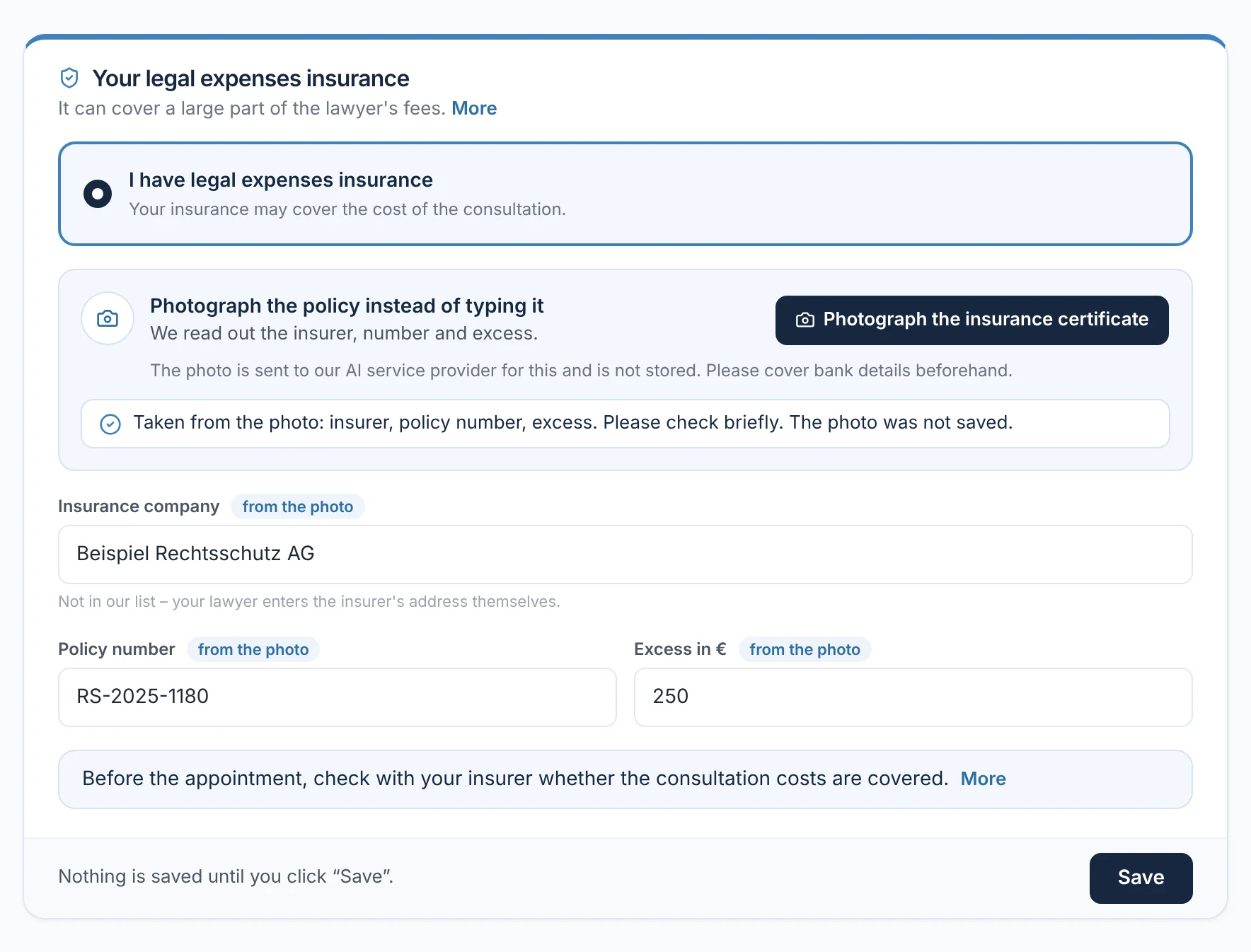
You enter your legal expenses insurance once in your account: choose from the list or photograph your insurance certificate. Rechtigo reads the insurer, policy number and excess and suggests them – the photo is not stored. This lets your lawyer request cost coverage; you see the confirmation in your case file.

  • Nothing is applied until you click ‘Save’
From everyday practice

On 05.10.2026, client Thomas Hoffmann photographs his insurance certificate. The fields fill with insurer, policy number and excess – he checks them and saves.

rechtigo.de/konto
Screenshot from Rechtigo, client view: Photograph your policy instead of typing it in
Pictured: Client view: client Thomas Hoffmann enters his legal expenses insurance in his account – after the photo, insurer, policy number and excess appear in the fields as a suggestion.
Notifications

Court hearing with everything you need to know

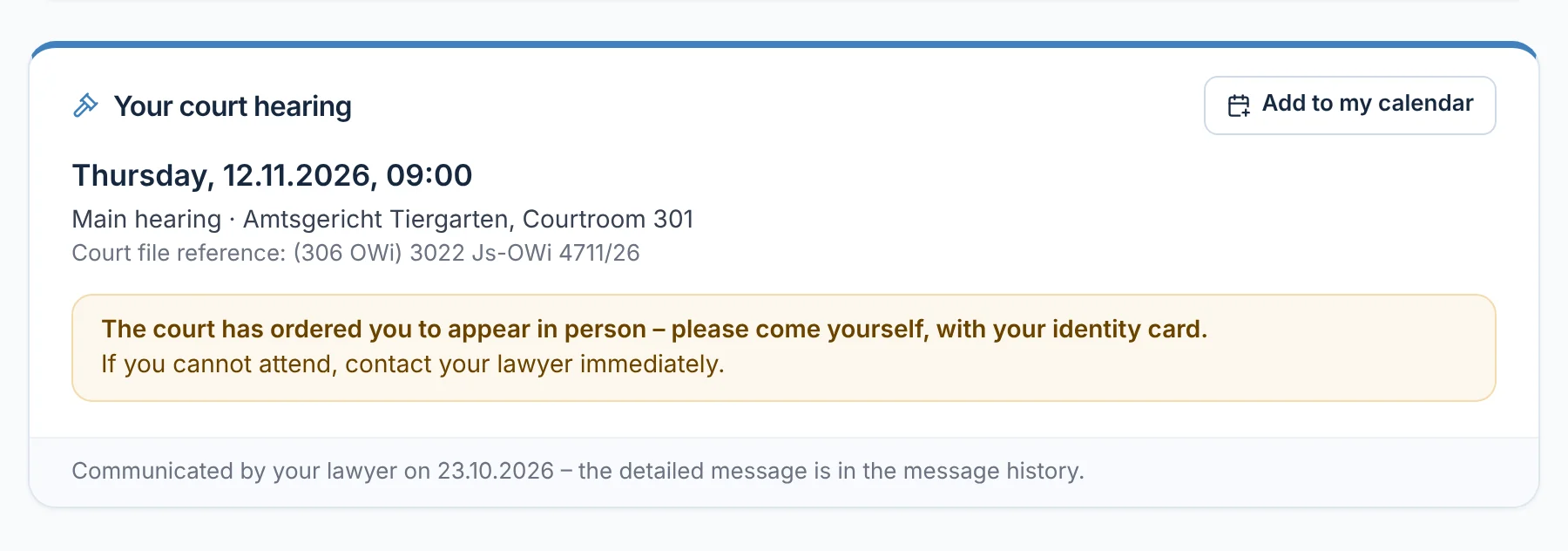
If your lawyer informs you of a court hearing, it appears as its own card in your case file: when, where and what you need to bear in mind. With ‘Add to my calendar’ you add it to your calendar. Your lawyer’s detailed message is in the thread.

From everyday practice

On 23.10.2026, client Peter Weber learns of his hearing at Tiergarten Local Court on 12.11.2026. The court has ordered him to appear in person – this is shown right below the date.

rechtigo.de/fall
Screenshot from Rechtigo, client view: Court hearing with everything you need to know
Pictured: Client view: the court hearing notification in the case file of client Peter Weber – date, court and courtroom, the note on his personal appearance and ‘Add to my calendar’.
Review

Leave a review after the appointment

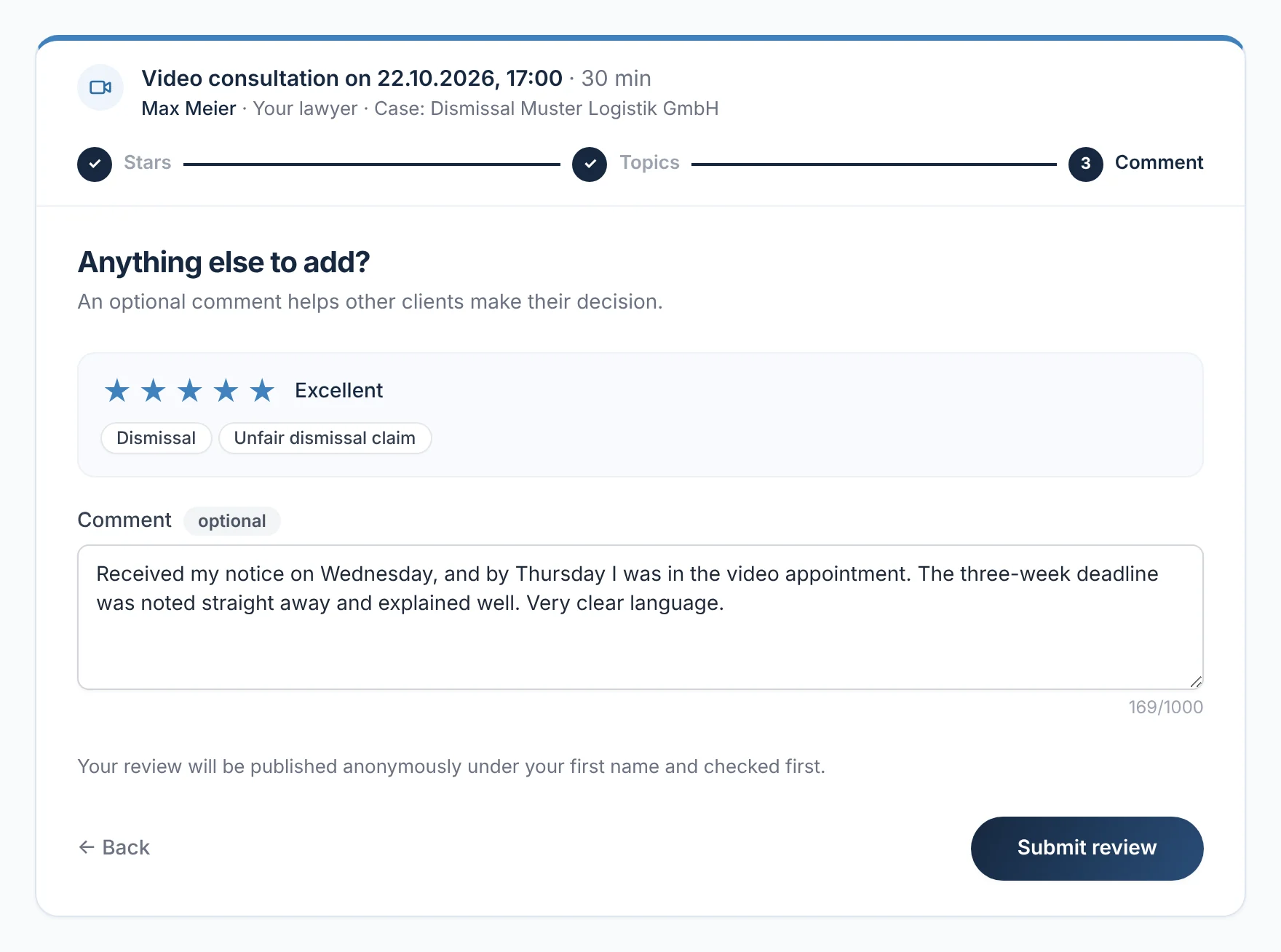
After a completed appointment, Rechtigo invites you by e-mail to leave a review. In three steps you give stars, choose topics where your lawyer helped you and, if you like, write a comment. It is published under your first name, after a brief check.

  • Only people who had an appointment can leave a review
From everyday practice

Client Anna Schulz reviews her initial consultation the day after: ‘Got my notice of dismissal on Wednesday, on Thursday I was in a video appointment.’

rechtigo.de/bewertung
Screenshot from Rechtigo, client view: Leave a review after the appointment
Pictured: Client view: client Anna Schulz reviews her video consultation of 22.10.2026 with lawyer Max Meier – five stars, two topics and a short comment.
More

Also included

Your documents

Everything you or your lawyer have uploaded, organised by case.

Your legal folder

Appointment at a glance

Your next appointment is at the top of your case file, with ‘Reschedule or cancel’.

Lawyer and appointment

Your lawyer’s questions

If your lawyer has questions, you answer them directly here – with ‘Answer questions’.

Questions

Frequently asked questions

Your question isn't here? Write to us at support@rechtigo.de.

Do I get an e-mail for every message?

You get an e-mail when there are new messages – bundled, at most one per quarter of an hour and without the content. Read and reply in your case file.

Can I withdraw my power of attorney?

Yes. In your case file, your power of attorney shows ‘Revoke power of attorney’.

Will I find out when my case moves forward?

Yes. When your lawyer completes a stage in the case tracker, you get an e-mail. If they have added a note, it appears in your case file.

What if I don’t have a requested document?

Tell your lawyer in your case file. They can also close the request without this document.

What does ‘Start immediately’ mean for the power of attorney?

Your lawyer starts straight away instead of waiting for the 14-day withdrawal period to expire – recommended if a deadline is running. Your right of withdrawal ends as soon as they have fully performed the service. The tick is optional.

Launch on 15 January 2027

Free for clients

Rechtigo launches on 15 January 2027. Sign up for the newsletter – we’ll let you know as soon as you can describe your case.